
 Join our Discord
Ask AI in Test Management
Open Ask AI in BrowserStack Test Management, describe the work in plain words, and let the AI agents generate, update, and organize your test assets.
Ask AI is a chat panel that opens on every Test Management page. You type what you need, such as test cases for a requirement or the duplicates in a folder. Ask AI reads the request, matches it to the BrowserStack AI agent for the job, and runs the agent inside the chat. You see each step the agent takes. Nothing reaches your repository until you approve it.
The agents behind Ask AI are the ones you already use from the Test Management pages. In Ask AI you steer them with prompts instead of settings. You can also chain them. Ask for datasets, updated test cases, and new test cases in one request. The agents then run in order.
- Ask AI is available on Team Ultimate plans with BrowserStack AI activated.
- BrowserStack does not train its AI models on the data you provide.
Open Ask AI
To start a chat, follow these steps:
- Open a project and go to the page you want to work on, such as Test Cases or Test Runs.
-
Click the floating Ask AI button at the bottom of the page.
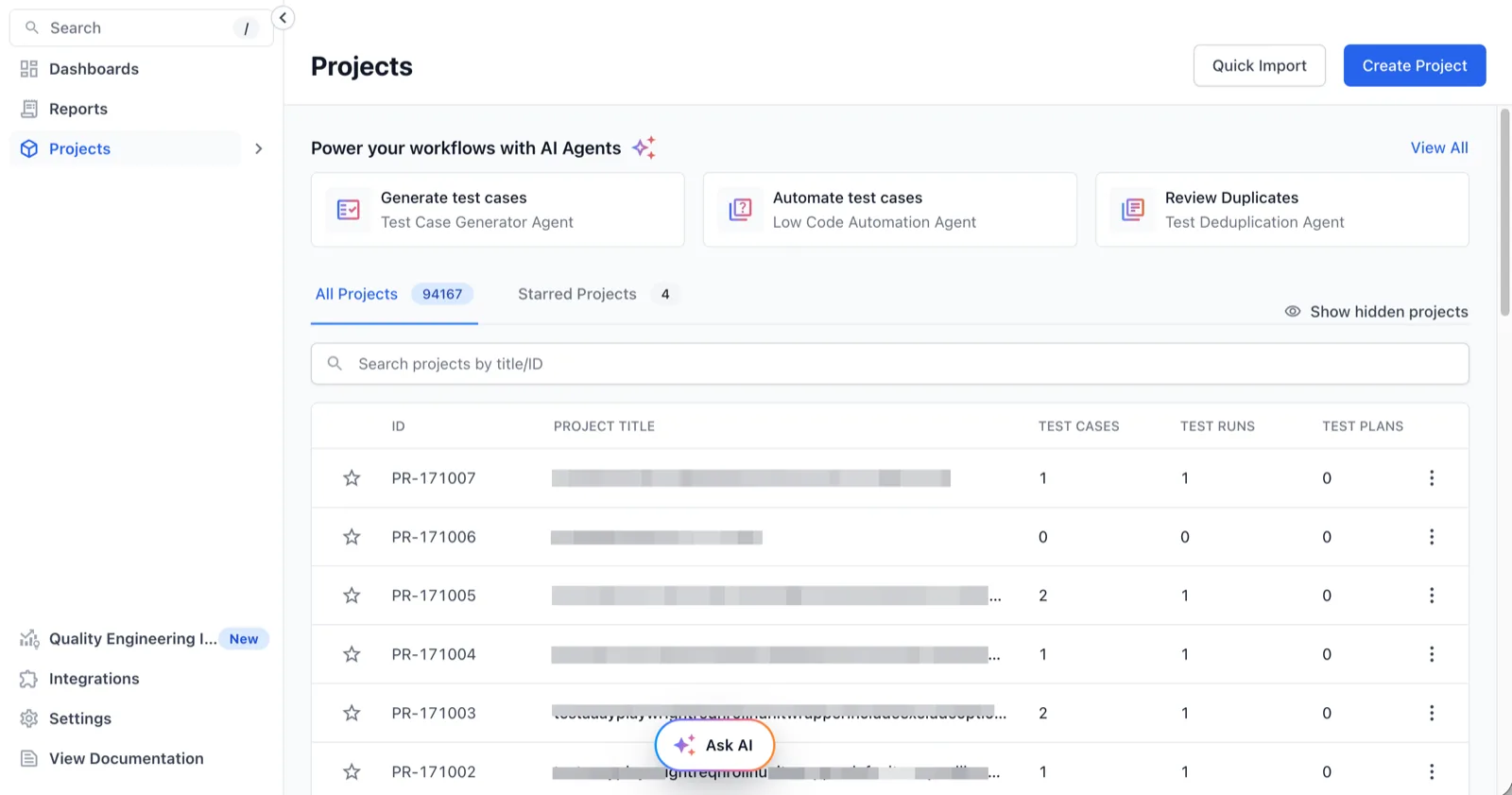
- Type your request in the prompt box, or click one of the suggestions.
- Press Enter or click Send.
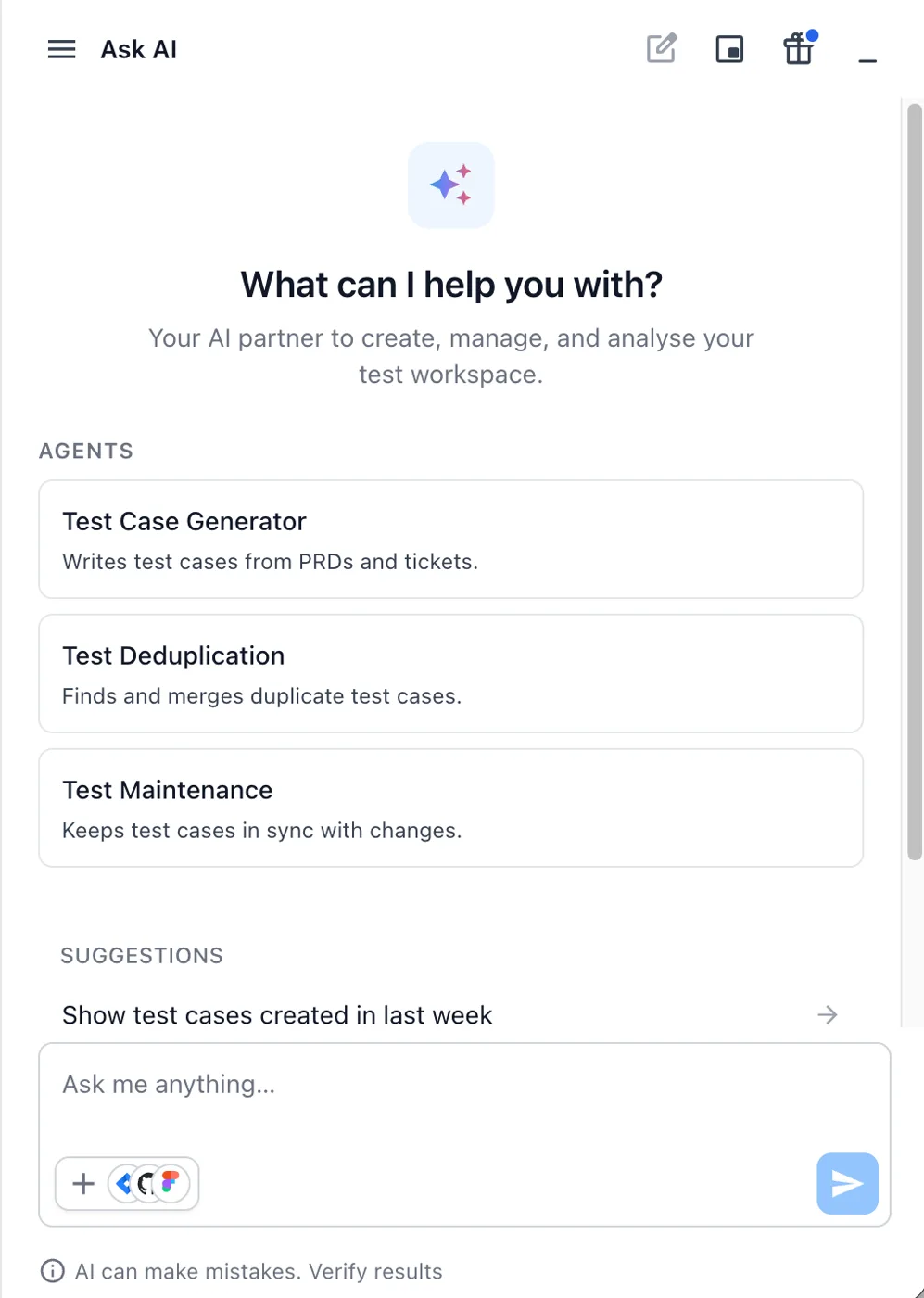
The panel has these parts:
| Part | Details |
|---|---|
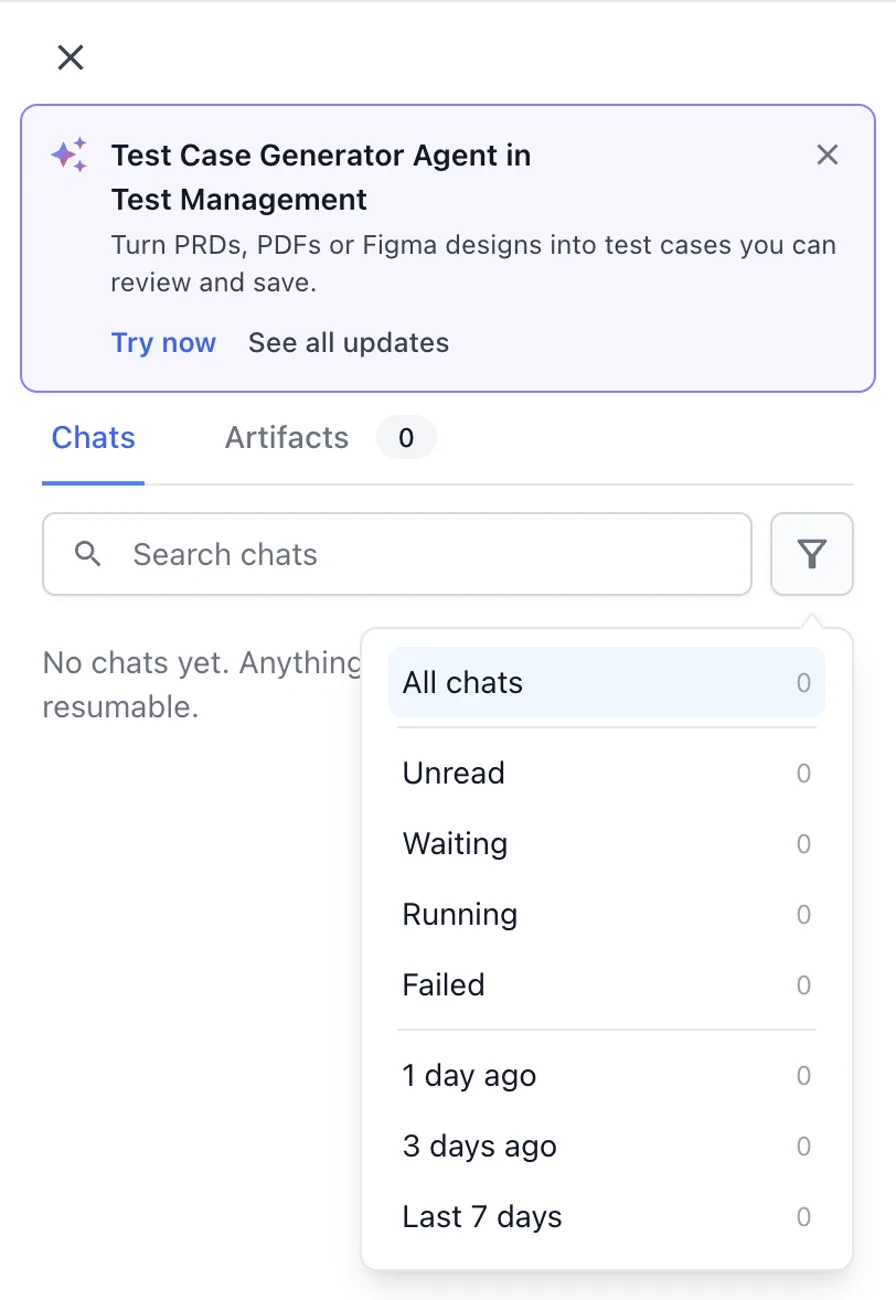
| Chats | The list icon in the header opens your earlier chats. Search them, or filter by Unread, Waiting, Running, Failed, or age. An Artifacts tab lists the files from your chats. |
| New chat | The pencil icon starts a fresh chat. An agent that is still running in the earlier chat keeps running. |
| Pop out to floating chat | Detaches the panel so you can keep working on the page behind it. |
| Agents | The empty chat lists the agents available on your account, each with a one-line description. |
| Suggestions | Ready-made prompts under the agent list. Click one to send it. |
| Context chip | The chip above the prompt box names where you are, for example Folder: Checkout or Project: Payments. Agents read it as the default scope. Click X to remove it. |
| Prompt box | Reads Ask me anything…. The + button attaches a file or opens the connectors. |
| Footer | Reads AI can make mistakes. Verify results. Review every suggestion before you approve it. |
What you can ask for
Each request goes to the agent that owns the task. The following table lists the agents that run inside Ask AI and the guide for each flow.
| Task | Example prompt | Agent | Guide |
|---|---|---|---|
| Generate test cases | Generate test cases for the attached PRD |
Test Case Generator Agent | Generate test cases with Ask AI |
| Generate test datasets | Generate datasets for the promo code rules |
Test Data Generator Agent | Generate test datasets with Ask AI |
| Update existing test cases | Update the checkout test cases for PAY-482 |
Test Case Maintenance Agent | Update test cases with Ask AI |
| Find duplicate test cases | Find duplicate test cases in this folder |
Test Deduplication Agent | Test Deduplication Agent |
| Select test cases for a test run | Create a test run for the login requirements |
Test Selection Agent | Test Selection Agent |
Follow a request
After you send a prompt, the chat shows what the agent is doing. The following table lists the signals to watch.
| Signal | Details |
|---|---|
| Progress card | Names the agent, for example TEST CASE GENERATION, and the current step, such as 1/2 · Writing the test cases. |
| Working… | Lists the analysis and the steps the agent takes. Expand it to read the reasoning. When the agent finishes, the line reads Completed N steps with the time taken. |
| Waiting for user input | The agent has a question or needs an approval. The chat shows the question with buttons. If you moved to another page, a toast reads Agent is waiting for input. |
| Approval required | A card that names the change the agent is about to make, for example a dataset it will create. Click Approve or press Enter to continue. Click Reject or press Esc to stop. The card then shows Approved. |
| Result card | Summarizes the output, for example 11 test cases are ready. Click View to open the review panel beside the chat. |
| Feedback buttons | Every reply carries Copy, Good output, and Bad output. |
You can leave the chat while an agent works. Click New chat to start something else. The result stays in the first chat, which you reopen from Chats. Filter the list by Waiting to find the chats that need you.
Approve before anything changes
Agents suggest. You decide. Every result ends with an Approval required card or with action buttons, such as Save to unit-tests folder. The repository changes only after you click one of them. To keep part of a result, open the review panel. Clear the checkbox on the rows you do not want, then click Add or Update.
Give the agent more to work from
A prompt alone gives you a draft from general knowledge. A requirement gives you coverage of your product. Attach a file, link a Jira issue, a Confluence page, or a Figma frame, or turn on web search. See Add context to Ask AI requests.
Ask for several things at once
One changed requirement can need new datasets, updated test cases, and new test cases. Say so in one prompt. The Test Data Generator Agent runs first, then the Test Case Maintenance Agent, then the Test Case Generator Agent. Ask AI asks for your approval before it saves each result. See Run several agents in one Ask AI request.
Limits
These limits apply to every agent in Ask AI:
- Agents fill system fields only. Custom field values are not generated.
- In this release, Ask AI does not read the project’s AI Agent Knowledge Base or AI Agent Instructions.
- Agents work inside the project in the context chip. Open another project to work there.
Next steps
Continue with one of these pages:
- Generate test cases with Ask AI: Draft test cases from a prompt and refine them in the chat.
- Add context to Ask AI requests: Attach files, connect tools, and turn on web search.
- Run several agents in one Ask AI request: See the order of the agents and what each handoff asks you.
We're sorry to hear that. Please share your feedback so we can do better
Contact our Support team for immediate help while we work on improving our docs.
We're continuously improving our docs. We'd love to know what you liked
We're sorry to hear that. Please share your feedback so we can do better
Contact our Support team for immediate help while we work on improving our docs.
We're continuously improving our docs. We'd love to know what you liked
Thank you for your valuable feedback!