You can start a new test either from the Quick Start page or the Load Tests page on the Load testing dashboard.
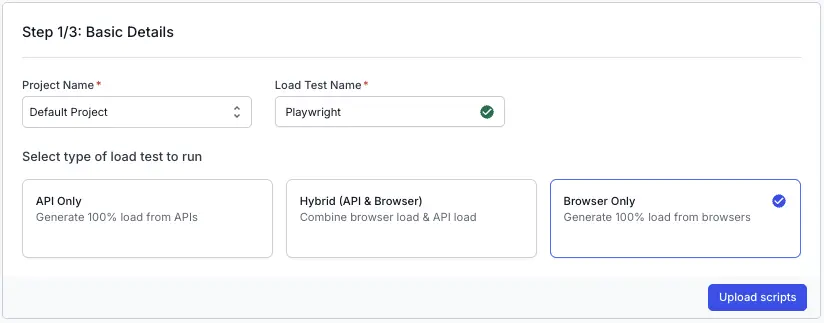
On the dashboard, click Create Load Test.
Enter a Test Name for your load test, select Browser Only and click Upload scripts
Upload scripts
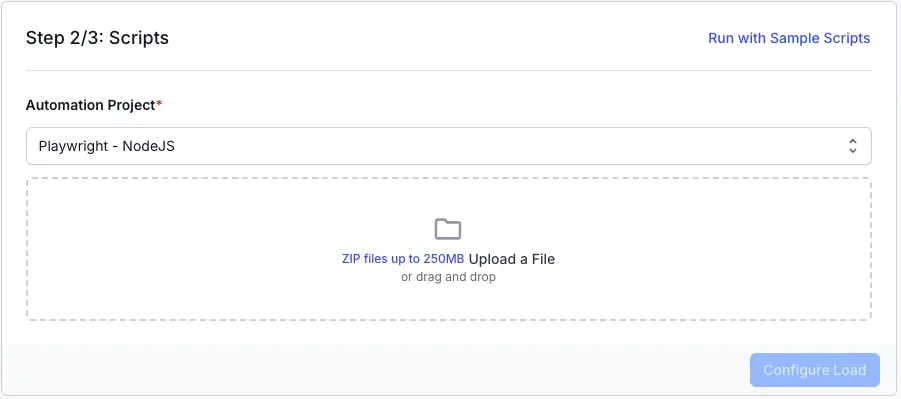
In this step, upload your Playwright automation project as a ZIP file. Select your framework (for example, Playwright - NodeJS) from the dropdown, then drag and drop your ZIP file (up to 250MB) or click to select it.
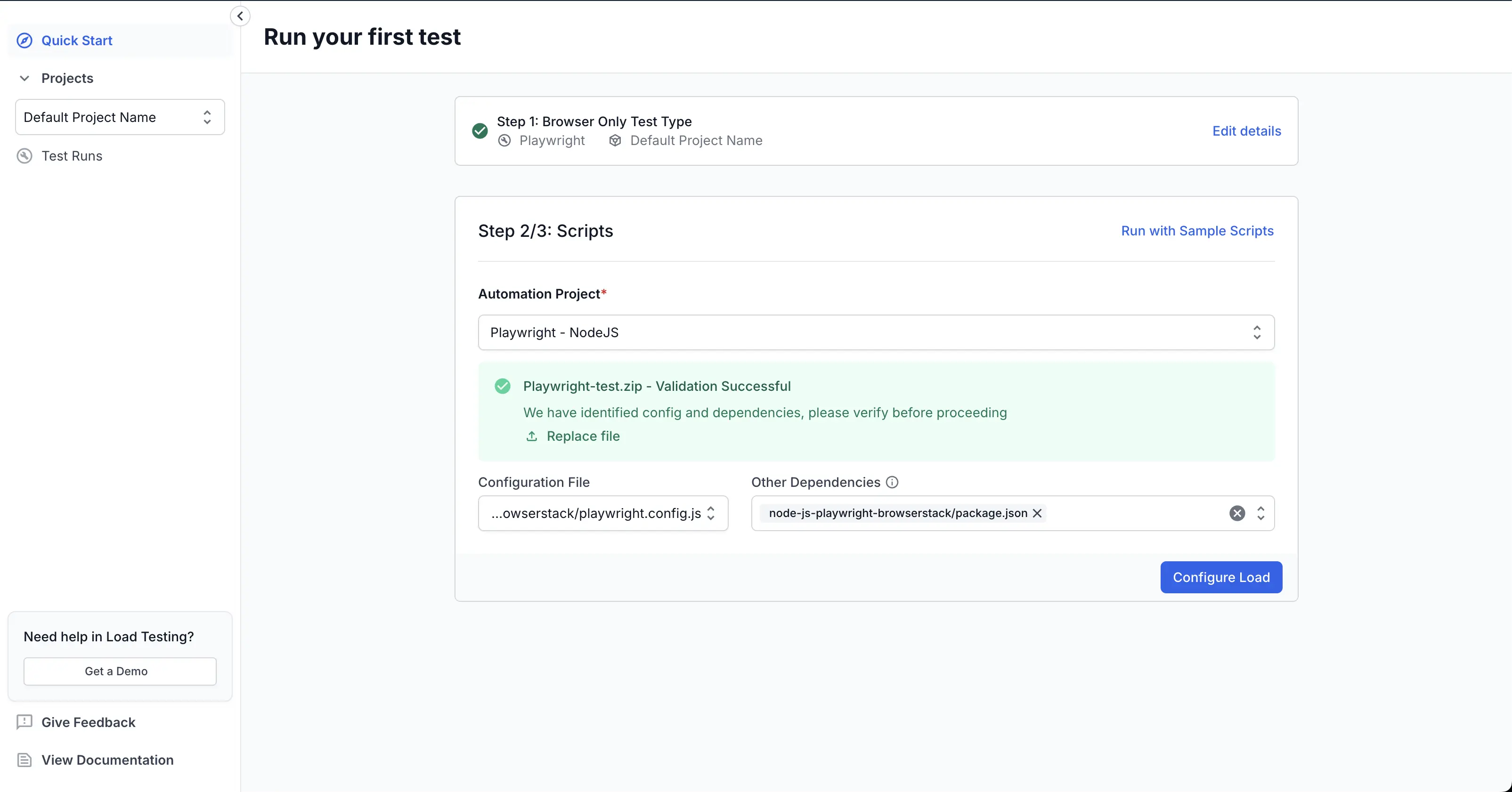
After you upload your ZIP file, the dashboard automatically validates your project. If validation is successful, you will see a confirmation message and a summary of the detected configuration and dependencies.
You can review and confirm the configuration file (your playwright config file) and any other dependencies (path of package.json) identified in your project.
Ensure that your package.json and Playwright config files are placed at the root level of your project.
Once you have verified the configuration, click Configure Load to move to the next step.
You can also run load tests using the sample scripts if you want to try out the feature before uploading your own files.
You can configure the following load parameters to customize your load test:
Run the following command from the root directory of your test project to generate the browserstack-load.yml file, which contains the configuration required to define and run your load test:
Open the generated browserstack-load.yml file and update it with the relevant test details. Here’s a sample configuration:
Specify the test type
testType defines the type of load test that you want to execute. Currently, Playwright, Selenium, WebdriverIO and Nightwatch are supported. Set this to Playwright for a load test using Playwright test suite.
Specify the language
Currently, only Playwright with NodeJS is supported so set the language to nodejs.
Specify the path
The files block specifies the key files required to install dependencies and define which tests should be executed.
Under dependencies, add the path to files required to set up the environment. For Node.js projects, include the path to your package.json.
Under testConfigs, add the path to your configuration file. For Playwright (Node.js), this is usually playwright.config.ts.
Make sure your config file includes the testDir option to specify where your test files are located. Use the testMatch option to filter which tests to run using glob patterns or regular expressions.
Headless mode
You can configure your Playwright load tests to run in either headless or headful mode using the headless capability.
Headless mode (default): The browser runs without a visible UI, which is faster and consumes fewer resources. Most CI/CD and automated load tests use headless mode.
Headful mode: The browser UI remains visible during test execution.
If not specified, tests will run in headless mode by default.
Set reporting structure
Use projectName to group related tests under the same project on the dashboard. Use testName to group multiple runs of the same test.
Both projectName and testName must remain consistent across different runs of the same test.
You can use the following characters in projectName and testName:
Letters (A–Z, a–z)
Digits (0–9)
Periods (.), colons (:), hyphens (-), square brackets ([]), forward slashes (/), at signs (@), ampersands (&), single quotes ('), and underscores (_)
All other characters are ignored.
You can configure the following load parameters to customize your load test:

 Join our Discord