
 Join our Discord
Web testing
Test web applications using Test Companion, from generating test cases to writing automation scripts and fixing failures, all without leaving your IDE.
Test Companion is an IDE extension that brings AI-powered testing into your development workflow. Describe what you want to test in plain language. Whether you provide a requirements document, a URL, a failing build, or a code diff, Test Companion figures out the best approach and handles the work.
Test Companion can:
- Generate test cases from a PRD, spec, user story, or live website.
- Validate your local code changes before you commit.
- Write automation scripts in any testing framework your project uses.
- Migrate an existing test suite to another framework or language, grounded in your live app.
- Generate API tests from an endpoint or specification.
- Analyze and fix failing or flaky tests from your CI/CD builds.
- Scan your application for accessibility violations and generate code fixes.
- Run tests from the IP address of a country you name to check geo-blocking, local currency, and translated pages.
How Test Companion works
When you type a prompt in the chat, Test Companion reads your message, evaluates the context you provide, and determines how to handle your request. You do not need to select a mode or choose an approach. Describe what you need, and Test Companion gets to work.
| Capability type | What Test Companion does |
|---|---|
| Generate test cases for this PRD (with file attached). | Reads the document and creates structured test cases. |
Explore example.com and find test scenarios. |
Opens a browser, navigates the site, and writes test cases from what it finds. |
Test my latest code changes on localhost:3000. |
Analyzes your git diff, launches a browser, and validates your changes. |
| Convert these test cases to Playwright scripts. | Reads your manual tests and generates automation code. |
| Fix the failing tests from my last build. | Pulls failure data, identifies the cause, and suggests code fixes. |
Scan localhost:3000 for accessibility issues and fix them. |
Runs a WCAG scan and generates code patches. |
For independent subtasks you run repeatedly, you can create skills that operate as reusable playbooks with your project-specific context, credentials, and file paths. For more information, refer Skills documentation for details.
Chat interface
The Test Companion panel is in your IDE’s sidebar. It has two main areas: the Chat panel and the Test management panel.
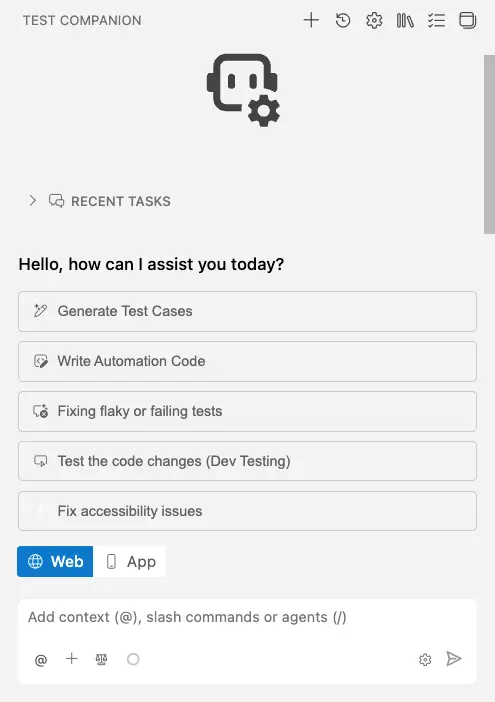
The chat panel is where you interact with Test Companion. Type your prompt, attach context, and send the message. Test Companion streams its response, shows its action plan, and delivers results directly in the panel.
Quick actions
The home screen displays five quick action buttons for the most common tasks: Generate Test Cases, Write Automation Code, Fixing flaky or failing tests, Test the code changes (Dev Testing), and Fix accessibility issues. Clicking a quick action pre-fills the chat with a starter prompt for that task. You can edit the pre-filled message before sending, or type a free-form prompt of your own at any time.
Quick actions are suggestions, not selectors. Auto mode still routes the task based on the prompt and context, regardless of which quick action you started from.
Web and App toggle
A Web and App toggle sits below the chat input. Web is the default for browser-based testing on desktop sites. Switch to App when working on mobile applications. The capabilities available, the context options, and the connected devices change based on the selected mode.
Add context for better results
Test Companion produces better output when you give it relevant context. You can combine multiple context types in a single prompt.
To add context, click the + icon in the chat toolbar or type @ in the chat input. The available context options are:
| Context | How to add | Use it for |
|---|---|---|
| File | Click + > Add File, or type @ and select a file. |
Attach a PRD, spec, screenshot, test plan, or any reference document. |
| Folder | Click + > Add Folder, or type @ and select a folder. |
Give Test Companion access to a directory of source or test files. |
| Git Commits | Click + > Git Commits, or type @ and select commits. |
Reference specific commits to scope work to a code change. |
| Terminal | Click + > Terminal, or type @ and select Terminal. |
Pass recent terminal output, including stack traces and command results. |
| Problems | Click + > Problems, or type @ and select Problems. |
Pass the current IDE Problems panel contents (linter and compiler errors). |
| URL | Click + > Paste URL to fetch contents, or paste a URL into the chat. | Point Test Companion at a live page or web resource. |
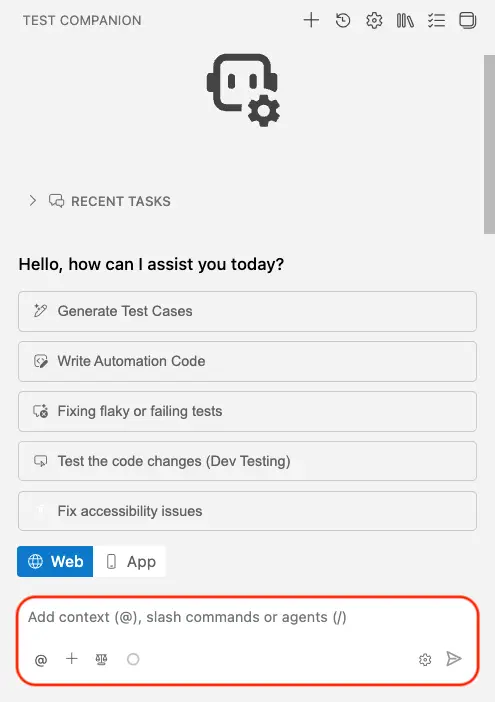
The more specific your context, the more accurate the results. Attaching the exact file or referencing the exact Git commit gives Test Companion a focused scope to work with.
Context also builds up over a long chat, which costs more AI credits per message. To learn when to start a new task, see Context usage in long chats.
File attachment limits
You can attach up to 20 files per message, counting documents and images together. Each file must stay within these size limits:
| File type | Maximum size |
|---|---|
Documents such as .pdf, .doc, .txt, .md, .csv, .json, and code files |
20 MB |
PowerPoint files in .pptx format |
5 MB |
Excel files in .xlsx or .xls format |
1 MB |
Images such as .png, .jpg, .jpeg, .webp, and .gif
|
5 MB |
Capabilities
Each capability addresses a specific testing task. Describe what you need. Auto mode selects and runs the right one. The following table summarizes the six built-in capabilities.
| Capability | Description | Documentation reference |
|---|---|---|
| Generate test cases | Creates structured test cases from requirements documents or by exploring a live website. | Generate test cases |
| Write automation code | Converts manual test cases into automation scripts for UI or API testing. | Automate tests |
| Fix failed tests | Analyzes CI/CD failures and suggests code fixes for failing tests. | Fix failed tests |
| Fix flaky tests | Finds tests that pass and fail across runs, then diagnoses the cause from the run history of those tests and stabilizes them. | Fix flaky tests |
| Test code changes | Reviews your code diff and validates that the latest changes work correctly before you commit. | Test the code changes |
| Fix accessibility issues | Scans for WCAG violations and generates code fixes. Runs base rules on your machine, or BrowserStack’s Advanced + AI rules in the cloud for one report across several pages. | Fix accessibility violations |
| Test from a specific location | Runs sessions from the IP address of a country or region you name, so you can check geo-blocking, local currency, and translated pages. | Test from a specific location |
Configure capability output
To set the format for generated test cases, click the gear icon (⚙) in the chat toolbar before sending your prompt. The Configure Test Cases panel opens with two format options:
- Default: Generates test cases in a standard tabular format with discrete fields for each step and expected result. This is the most common format for teams using BrowserStack Test Management.
- BDD: Generates test cases in Gherkin-style Given/When/Then syntax. Use this if your team follows behavior-driven development practices.
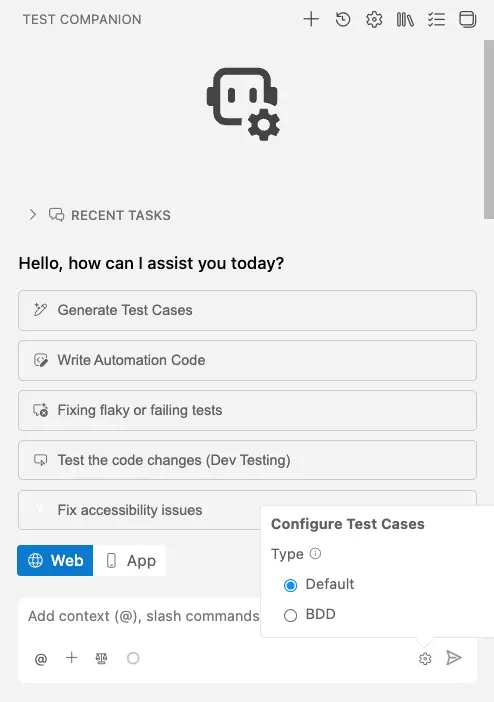
The configuration options shown depend on the capability auto mode selects for your prompt. See each capability’s child page for the full list of configuration options.
Customize Test Companion
Beyond the built-in capabilities, you can customize how Test Companion responds across every conversation, and you can define your own playbooks for repeated tasks.
- Use rules to enforce coding standards or other persistent guidance.
- Use skills to define reusable playbooks for independent subtasks and invoke them with a slash command.
- Use configuration and preferences to adjust interaction modes, approval controls, and other extension settings.
Next steps
- Generate test cases: Create test cases from requirements or by exploring a live site.
- Dev testing: Validate local code changes before you commit.
- Write automation code: Convert manual tests into automation scripts.
- Fix failed tests: Analyze CI/CD failures and apply code fixes from the panel, the Automate dashboard, or the chat.
- Fix flaky tests: Find tests that pass and fail across runs, then stabilize those tests based on their run history.
- Optimize test suite: Cut sessions, minutes, and runtime without losing coverage. You approve each change before Test Companion applies it.
- Fix accessibility violations: Scan for WCAG violations and apply code fixes.
- Test from a specific location: Run a session from the IP address of a country or region you name.
We're sorry to hear that. Please share your feedback so we can do better
Contact our Support team for immediate help while we work on improving our docs.
We're continuously improving our docs. We'd love to know what you liked
We're sorry to hear that. Please share your feedback so we can do better
Contact our Support team for immediate help while we work on improving our docs.
We're continuously improving our docs. We'd love to know what you liked
Thank you for your valuable feedback!