Experience faster, smarter testing with BrowserStack AI Agents. See what your workflow’s been missing. Explore now!
No Result Found
Get your setup working faster. Join our Discord for optimisation tips from elite testers. Join our DiscordJoin our Discord

Integrate your Gauge test suite with Automate

A guide to integrating your Gauge automated tests with BrowserStack SDK. Run tests on BrowserStack’s real device cloud of 3000+ devices and browsers.

Prerequisites

  • An existing automated test suite.
  • Gauge (latest version), Java v8+, Selenium v2.5+ (JSON Wire or W3C).
  • Maven is installed on your machine, with environment variables set and Maven added to the system path, $PATH.

Looking for a starter project? Get started with our Gauge sample project.

Integration steps

Complete the steps in the following tabs for your preferred IDE or the command line.

Install BrowserStack Plugin

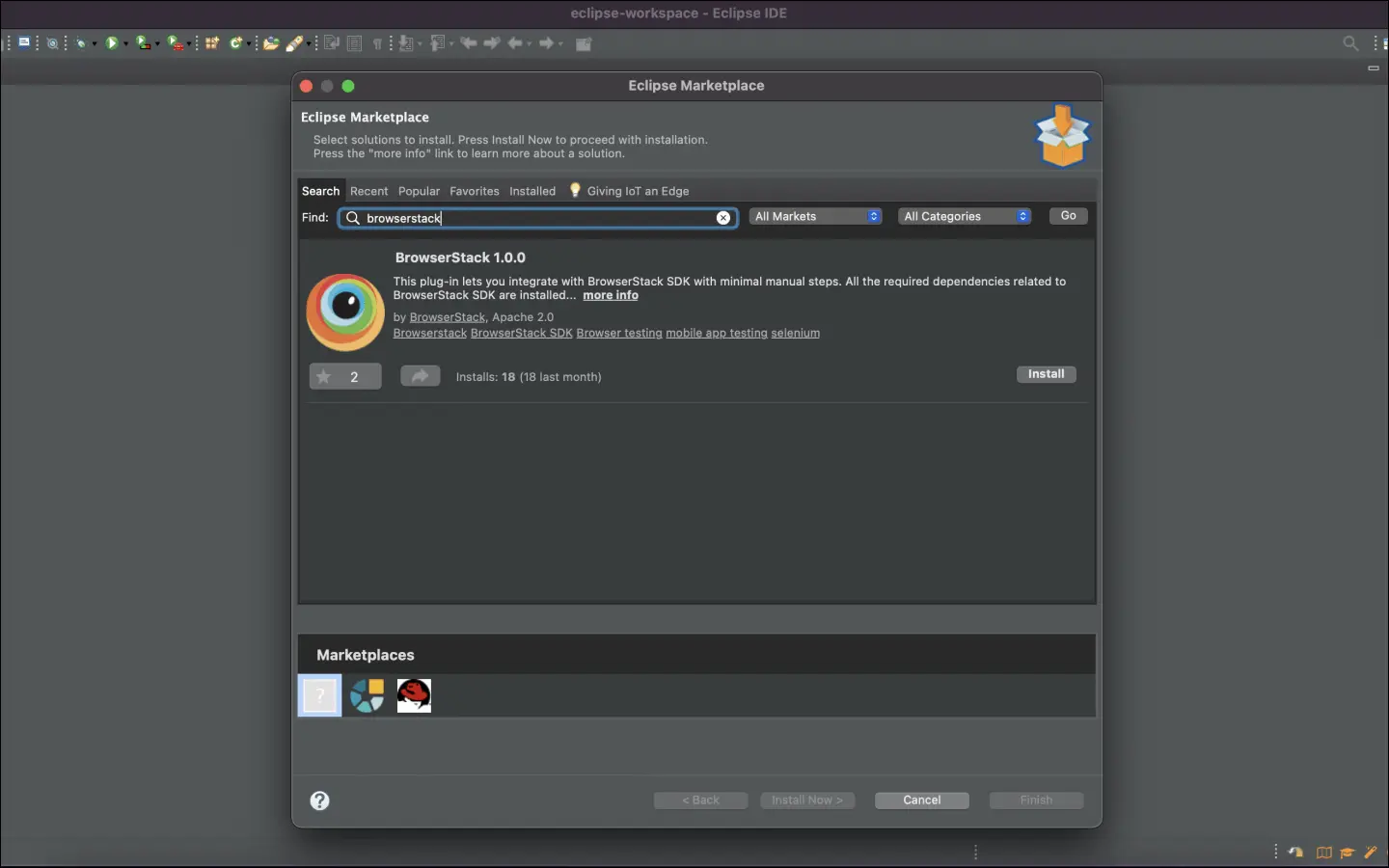
On the Eclipse toolbar, click Help > Eclipse Marketplace.

In the Eclipse Marketplace, search for BrowserStack > click Install > Finish. Search for BrowserStack plugin
Configure your test suite with BrowserStack SDK

BrowserStack plugin automatically adds the browserstack-java-sdk dependency to your pom.xml file and generates a browserstack.yml configuration file.

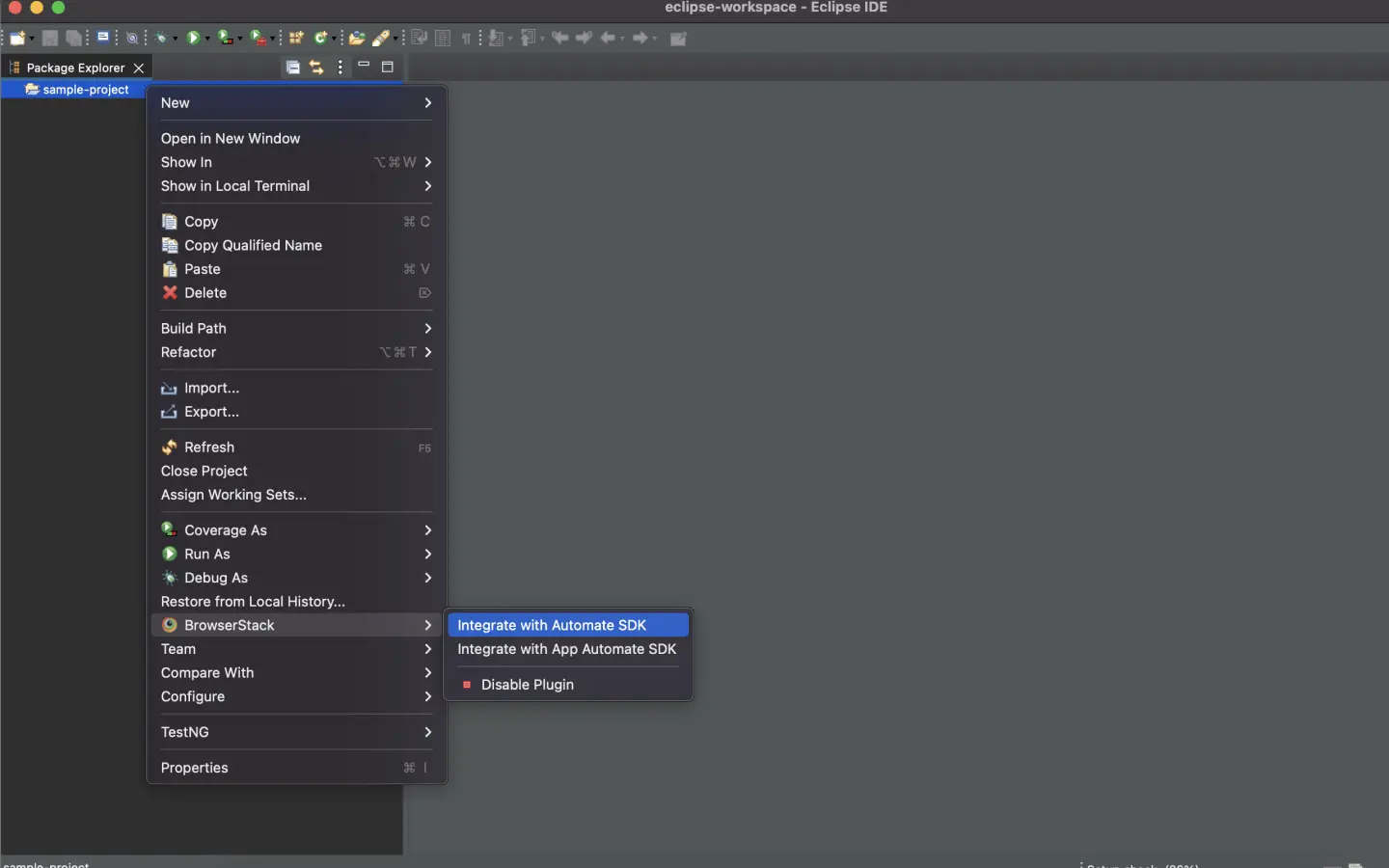
Right-click on your project folder > BrowserStack > select Integrate with Automate SDK. Image of the Eclipse IDE showing the navigation from the project folder to BrowserStack to the Integrate with BrowserStack SDK option
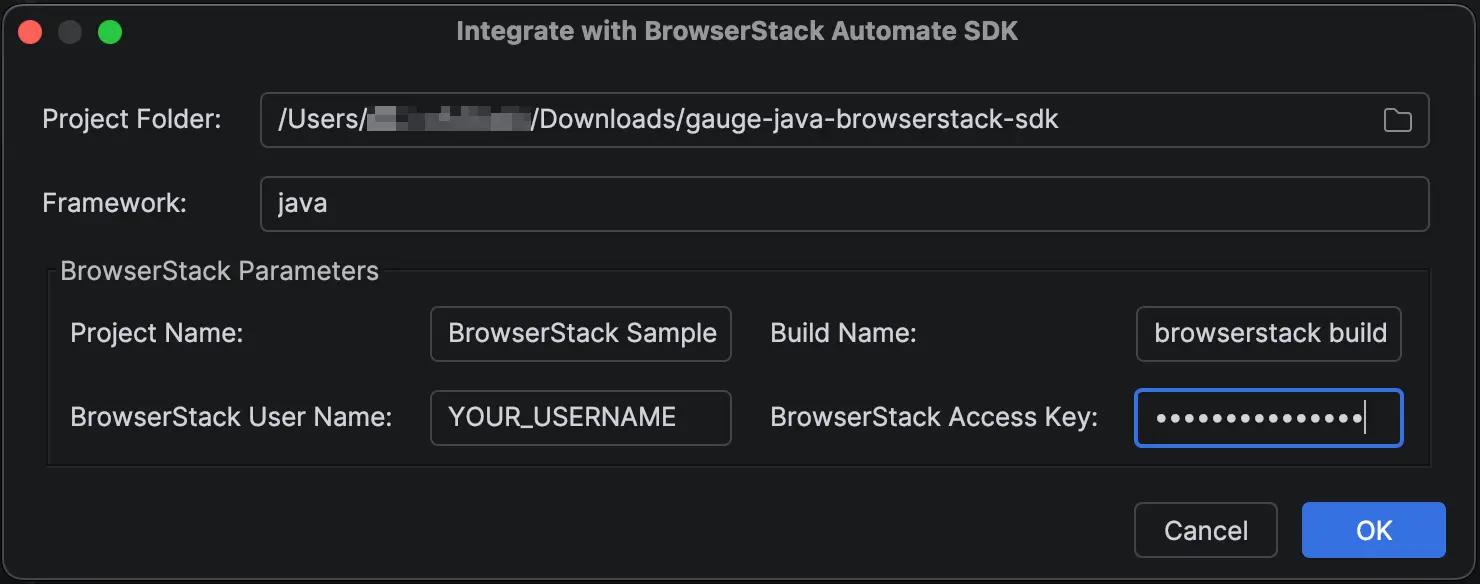
Select your Project Folder, Framework, and other BrowserStack Parameters, and then click Integrate.

Framework: java
BrowserStack User Name: YOUR_USERNAME
BrowserStack Access Key: YOUR_ACCESS_KEY
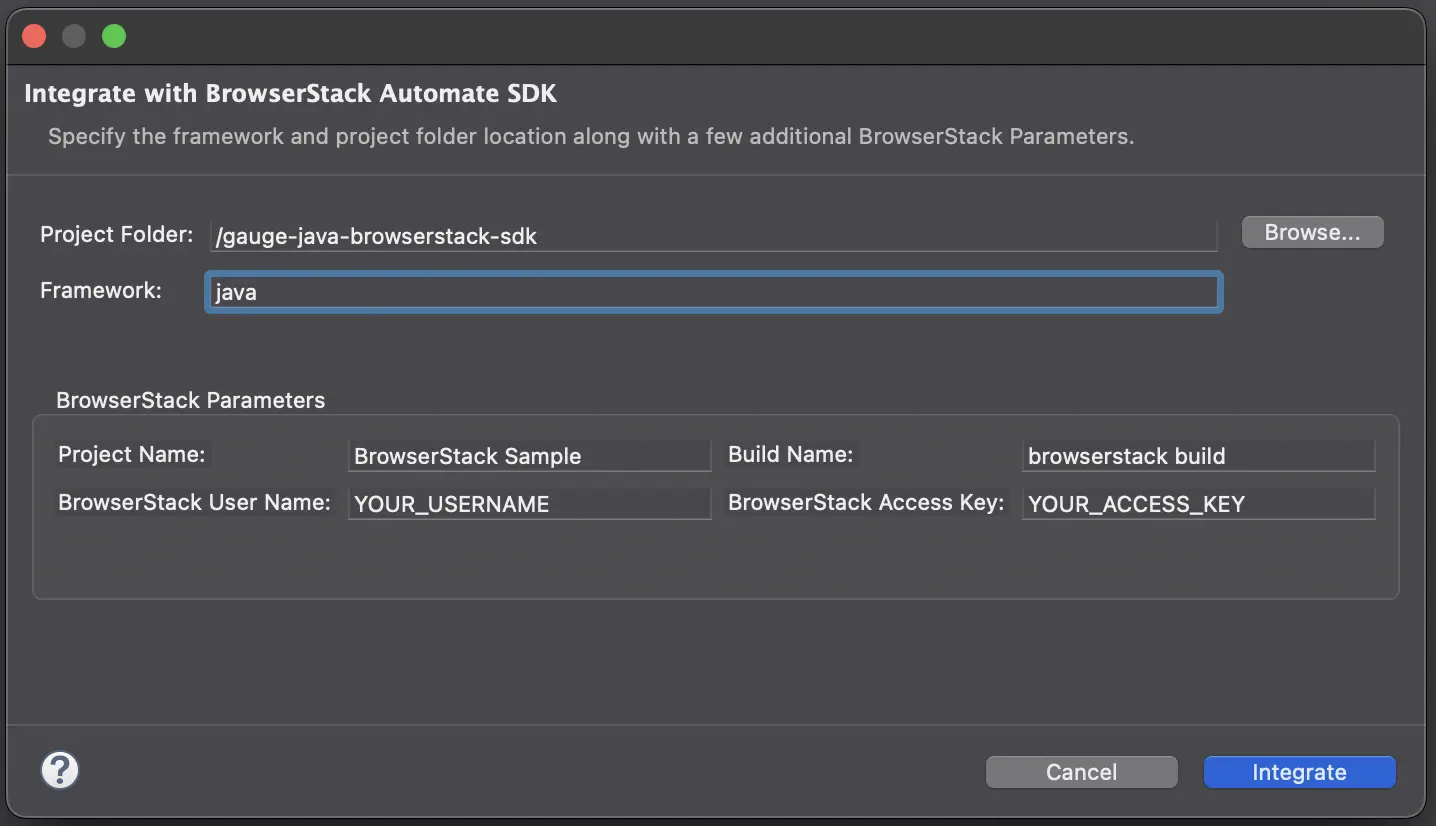
Image of the Eclipse IDE showing the Integrate with BrowserStack SDK screen with parameters filled in

Update your BrowserStack config file

Update your browserstack.yml config file at the root level of your project. This file holds all the required capabilities to run tests on BrowserStack.

Set platforms to test on

Set the browsers or devices you want to test under the platforms object. Our config follows W3C formatted capabilities.

Parallel thread #1
Parallel thread #2
Parallel thread #3

To dynamically configure platforms across different tests, you can comment out the platforms capability while still passing platform-specific capabilities.

Icon indicating AI featureConfigure AI Agents

You can enable the following AI agents by adding the respective configurations in your browserstack.yml file:

Enable Self Heal Agent

Auto-fix locator failures with the AI-powered self-heal agent and get up to 40% fewer locator failures. Learn more

True
False
Enable NL Test Automation Agent

Write once and run anywhere with natural language commands. Save up to 5x on maintenance efforts. Learn more

True
False
Test Failure Analysis Agent
Auto-enabled

AI-powered root cause analysis for test failures that can reduce debugging time. Learn more

Enable BrowserStack Local

Test localhost/internal servers in your network

True
False
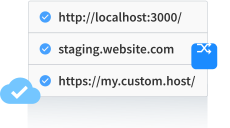
Test localhost/staging websites that are not publicly accessible

BrowserStack’s Local Testing feature connects with test suites pointing to your localhost URL
Learn more

BrowserStack Local supports all advanced use cases and restricted networks. Contact our support team for assistance in configuring BrowserStack Local for your enterprise.

BrowserStack Reporting

You can leverage BrowserStack’s extensive reporting features using the following capabilities:

Build Name

Set a name to your build (usually the same as the build ID that’s on your CI/CD platform).
Accepted characters: A-Z, a-z, 0-9, ., :, -, [], /, @, &, ', _. All other characters are ignored.
Character limit: 255


Project Name

Set a project name for your project.

The projectName and buildName config must be static and not change across different runs of the same build. This is a deviation in approach as specified by BrowserStack Automate or App Automate as Test Reporting & Analytics will automatically identify different build runs.

Restrict the characters in your projectName and buildName to alphanumeric characters (A-Z, a-z, 0-9), underscores (_), colons (:), square brackets ([, ]), and hyphens (-). Any other character will be replaced with an underscore (_).

The sessionName and sessionStatus are the names of your test sessions and status of your test sessions respectively. They are automatically picked from your test class/spec names and statuses. They do not need to be set manually when using the BrowserStack SDK. To override the sessionName and sessionStatus capabilities, use the following in your browserstack.yml file:

You can configure local testing to start without initializing the BrowserStack binary, or even with an existing binary using a local identifier

testContextOptions:
    skipSessionName: true
    skipSessionStatus: true

Use additional debugging features

By default, BrowserStack provides prettified session logs, screenshots on every failed selenium command, and a video of the entire test. Additionally, you can enable the following features:

Visual logs

Enables screenshots for every selenium command ran

True
False
Network logs

Enables network capture for the session in HAR format. Reduces session performance slightly

True
False

Update BrowserStack config file

Copy the given code snippet and replace contents of browserstack.yml file in the root folder of your test suite.

browserstack.yml
Copy icon Copy

Use our Capability Generator to select from a comprehensive set of options you can use to customize your tests.

Run your test suite

You can continue running your tests as you have been previously.

Install BrowserStack Plugin

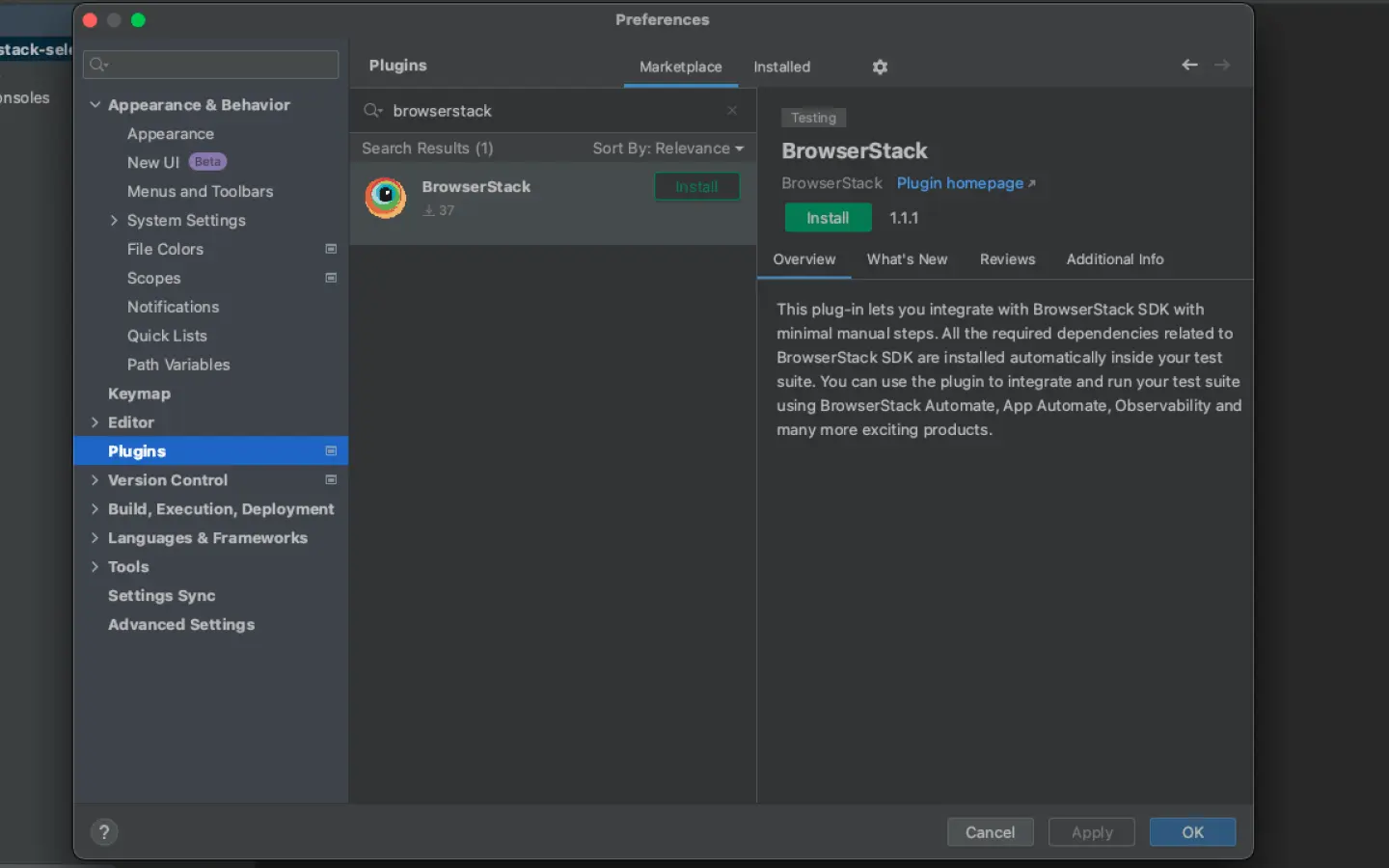
Click IntelliJ IDEA > Preferences > Plugins.

Search for BrowserStack and click Install. Intellij IDEA Configuration

Configure your test suite with BrowserStack SDK

BrowserStack plugin automatically adds the browserstack-java-sdk dependency to your pom.xml file and generates a browserstack.yml configuration file.

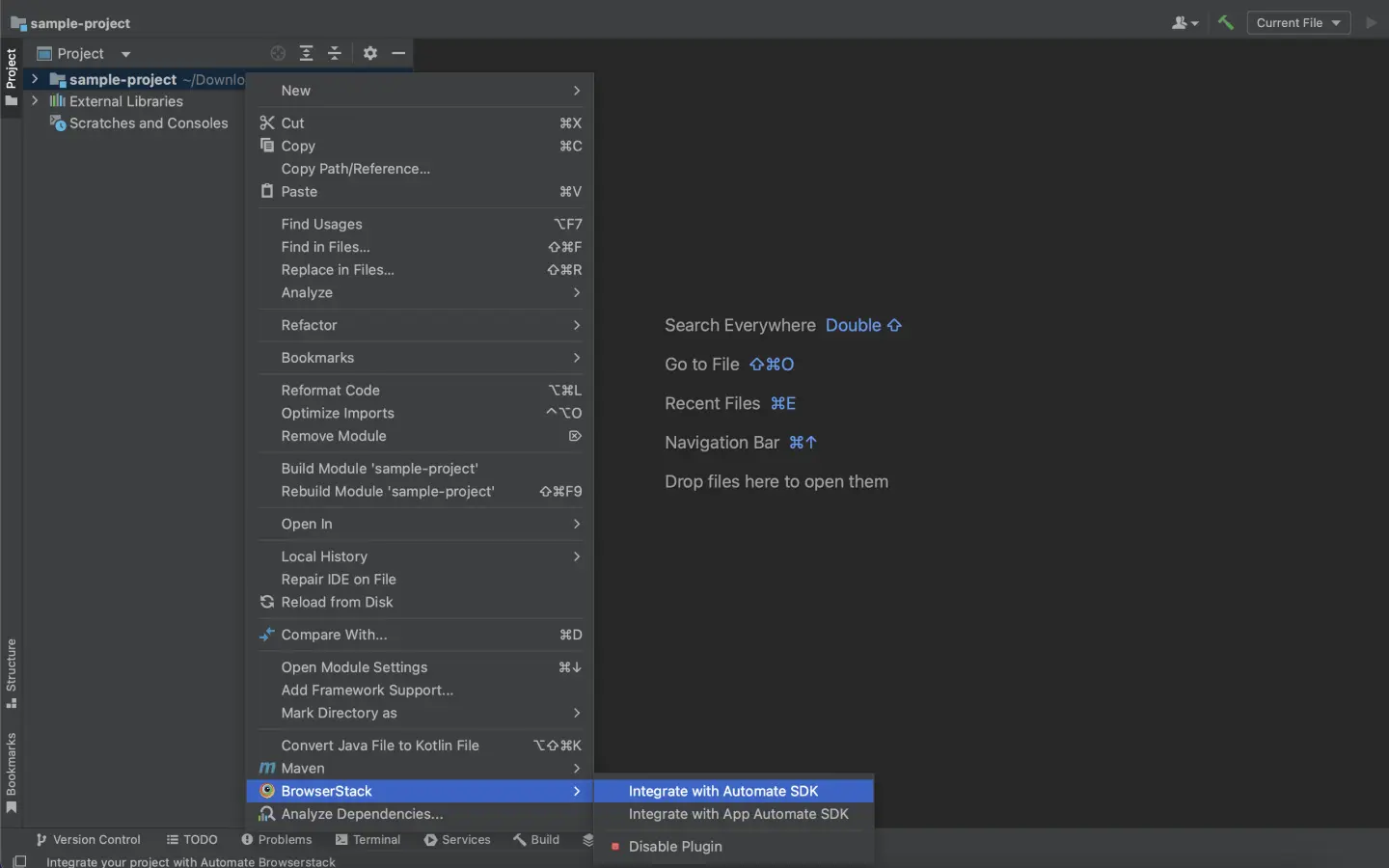
Right-click on your project folder > BrowserStack > select Integrate with Automate SDK. Intellij IDEA Configuration

Select your Project Folder, add Framework and other BrowserStack Parameters then click OK.

Framework: java
BrowserStack User Name: YOUR_USERNAME
BrowserStack Access Key: YOUR_ACCESS_KEY

Intellij IDEA Configuration

Update your BrowserStack config file

Update your browserstack.yml config file at the root level of your project. This file holds all the required capabilities to run tests on BrowserStack.

Set platforms to test on

Set the browsers or devices you want to test under the platforms object. Our config follows W3C formatted capabilities.

Parallel thread #1
Parallel thread #2
Parallel thread #3

To dynamically configure platforms across different tests, you can comment out the platforms capability while still passing platform-specific capabilities.

Icon indicating AI featureConfigure AI Agents

You can enable the following AI agents by adding the respective configurations in your browserstack.yml file:

Enable Self Heal Agent

Auto-fix locator failures with the AI-powered self-heal agent and get up to 40% fewer locator failures. Learn more

True
False
Enable NL Test Automation Agent

Write once and run anywhere with natural language commands. Save up to 5x on maintenance efforts. Learn more

True
False
Test Failure Analysis Agent
Auto-enabled

AI-powered root cause analysis for test failures that can reduce debugging time. Learn more

Enable BrowserStack Local

Test localhost/internal servers in your network

True
False
Test localhost/staging websites that are not publicly accessible

BrowserStack’s Local Testing feature connects with test suites pointing to your localhost URL

Learn more

BrowserStack Local supports all advanced use cases and restricted networks. Contact our support team for assistance in configuring BrowserStack Local for your enterprise.

BrowserStack Reporting

You can leverage BrowserStack’s extensive reporting features using the following capabilities:

Build Name

Set a name to your build (usually the same as the build ID that’s on your CI/CD platform).
Accepted characters: A-Z, a-z, 0-9, ., :, -, [], /, @, &, ', _. All other characters are ignored.
Character limit: 255


Project Name

Set a project name for your project.

The projectName and buildName config must be static and not change across different runs of the same build. This is a deviation in approach as specified by BrowserStack Automate or App Automate as Test Reporting & Analytics will automatically identify different build runs.

Restrict the characters in your projectName and buildName to alphanumeric characters (A-Z, a-z, 0-9), underscores (_), colons (:), square brackets ([, ]), and hyphens (-). Any other character will be replaced with an underscore (_).

The sessionName and sessionStatus are the names of your test sessions and status of your test sessions respectively. They are automatically picked from your test class/spec names and statuses. They do not need to be set manually when using the BrowserStack SDK. To override the sessionName and sessionStatus capabilities, use the following in your browserstack.yml file:

You can configure local testing to start without initializing the BrowserStack binary, or even with an existing binary using a local identifier

testContextOptions:
    skipSessionName: true
    skipSessionStatus: true

Use additional debugging features

By default, BrowserStack provides prettified session logs, screenshots on every failed selenium command, and a video of the entire test. Additionally, you can enable the following features:

Visual logs

Enables screenshots for every selenium command ran

True
False
Network logs

Enables network capture for the session in HAR format. Reduces session performance slightly

True
False

Update browserstack.yml file

Copy the given code snippet and replace contents of browserstack.yml file in the root folder of your test suite.

browserstack.yml
Copy icon Copy

Use our Capability Generator to select from a comprehensive set of options you can use to customize your tests.

Run your test suite

You can continue running your tests as you have been previously.
Set BrowserStack credentials

Save your BrowserStack credentials as environment variables. It simplifies running your test suite from your local or CI environment.

export BROWSERSTACK_USERNAME="YOUR_USERNAME"
export BROWSERSTACK_ACCESS_KEY="YOUR_ACCESS_KEY"
$env:BROWSERSTACK_USERNAME="YOUR_USERNAME"
$env:BROWSERSTACK_ACCESS_KEY="YOUR_ACCESS_KEY"
setx BROWSERSTACK_USERNAME "YOUR_USERNAME"
setx BROWSERSTACK_ACCESS_KEY "YOUR_ACCESS_KEY"
set BROWSERSTACK_USERNAME=YOUR_USERNAME
set BROWSERSTACK_ACCESS_KEY=YOUR_ACCESS_KEY

Install BrowserStack SDK using Maven Archetype

Run the following command on your terminal/command-line to add browserstack-java-sdk dependency and browserstack.yml file in your project.

MacOS/Linux:

mvn archetype:generate -B -DarchetypeGroupId=com.browserstack \
-DarchetypeArtifactId=browserstack-sdk-archetype-integrate -DarchetypeVersion=1.0 \
-DgroupId=com.browserstack -DartifactId=browserstack-sdk-archetype-integrate -Dversion=1.0 \
-DBROWSERSTACK_USERNAME=YOUR_USERNAME -DBROWSERSTACK_ACCESS_KEY=YOUR_ACCESS_KEY \
-DBROWSERSTACK_FRAMEWORK=gauge

Windows:

mvn archetype:generate -B -DarchetypeGroupId="com.browserstack" -DarchetypeArtifactId="browserstack-sdk-archetype-integrate" -DarchetypeVersion="1.0" -DgroupId="com.browserstack" -DartifactId="browserstack-sdk-archetype-integrate" -Dversion="1.0" -DBROWSERSTACK_USERNAME="YOUR_USERNAME" -DBROWSERSTACK_ACCESS_KEY="YOUR_ACCESS_KEY" -DBROWSERSTACK_FRAMEWORK="gauge"

Update your BrowserStack config file

When you install the SDK, a browserstack.yml config file is created at the root level of your project. This file holds all the required capabilities to run tests on BrowserStack.

Set platforms to test on

Set the browsers or devices you want to test under the platforms object. Our config follows W3C formatted capabilities.

Parallel thread #1
Parallel thread #2
Parallel thread #3

To dynamically configure platforms across different tests, you can comment out the platforms capability while still passing platform-specific capabilities.

Icon indicating AI featureConfigure AI agents

You can enable the following AI agents by adding the respective configurations in your browserstack.yml file:

Enable Self Heal Agent

Auto-fix locator failures with the AI-powered self-heal agent and get up to 40% fewer locator failures. Learn more

True
False
Enable NL Test Automation Agent

Write once and run anywhere with natural language commands. Save up to 5x on maintenance efforts. Learn more

True
False
Test Failure Analysis Agent
Auto-enabled

AI-powered root cause analysis for test failures that can reduce debugging time. Learn more

Enable BrowserStack Local

Test localhost/internal servers in your network

True
False
Test localhost/staging websites that are not publicly accessible

BrowserStack’s Local Testing feature connects with test suites pointing to your localhost URL

Learn more

BrowserStack Local supports all advanced use cases and restricted networks. Contact our support team for assistance in configuring BrowserStack Local for your enterprise.

BrowserStack reporting

You can leverage BrowserStack’s extensive reporting features using the following capabilities:

Build Name

Set a name to your build (usually the same as the build ID that’s on your CI/CD platform).
Accepted characters: A-Z, a-z, 0-9, ., :, -, [], /, @, &, ', _. All other characters are ignored.
Character limit: 255


Project Name

Set a project name for your project.

The projectName and buildName config must be static and not change across different runs of the same build. This is a deviation in approach as specified by BrowserStack Automate or App Automate as Test Reporting & Analytics will automatically identify different build runs.

Restrict the characters in your projectName and buildName to alphanumeric characters (A-Z, a-z, 0-9), underscores (_), colons (:), square brackets ([, ]), and hyphens (-). Any other character will be replaced with an underscore (_).

Use additional debugging features

By default, BrowserStack provides prettified session logs, screenshots on every failed selenium command, and a video of the entire test. Additionally, you can enable the following features:

Visual logs

Enables screenshots for every Selenium command run

True
False
description="Enables screenshots for every Selenium command run"
Network logs

Enables network capture for the session in HAR format. Reduces session performance slightly

True
False

Update browserstack.yml file with selected capabilities

Copy the following code snippet and replace contents of browserstack.yml file in the root folder of your test suite.

browserstack.yml
Copy icon Copy

Use our Capability Generator to select from a comprehensive set of options you can use to customize your tests.

Run your test suite

You can continue running your tests as you have been previously.
To find out the location of the BrowserStack SDK log files, refer to BrowserStack SDK Log Files. If you are looking for more information, see FAQ documentation.

After you run your test, visit the Automate dashboard to view your test results.

Advanced features and use cases

Here’s a list of features and capabilities you may find useful.

The acceptInsecureCerts capability suppresses browser popups warning about self-signed certificates usually found in staging environments.

Capability Expected values
acceptInsecureCerts A boolean. Default is false.
true if you want to accept all SSL certificates.
browserstack.yml

The resolution capability changes the default desktop screen resolution for your tests on BrowserStack.

Capability Description Expected values
resolution Set the resolution of your VM before beginning your test A string. Default resolution is 1024x768

Supported resolutions:
Windows (XP, 7): 800x600, 1024x768, 1280x800, 1280x1024, 1366x768, 1440x900, 1680x1050, 1600x1200, 1920x1200, 1920x1080, and 2048x1536

Windows (8, 8.1, 10): 1024x768, 1280x800, 1280x1024, 1366x768, 1440x900, 1680x1050, 1600x1200, 1920x1200, 1920x1080, and 2048x1536

OS X (Golden Gate, Tahoe, Sequoia, Sonoma, Ventura, Monterey, Big Sur, Catalina, Mojave, and High Sierra): 1024x768, 1280x960, 1280x1024, 1600x1200, 1920x1080, 2560x1440, 2560x1600, and 3840x2160

OS X (All other versions): 1024x768, 1280x960, 1280x1024, 1600x1200, and 1920x1080
browserstack.yml

The geoLocation capability lets you test your websites across different countries.

Note that this capability is supported on the Enterprise plan only. You can contact sales to get an Enterprise plan for your account.

Capability Description Expected values
geoLocation Set the country code you want your test to detect A string. An ISO 2 country code

FR for France,
CN for China

Check out the complete list of 45+ countries we support.
browserstack.yml

The networkProfile capability lets you test your websites under different network conditions.

Capability Description Expected values
networkProfile Set the network profile to start the test with A string.

2g-gprs-good, 4g-lte-advanced-lossy

Check out the complete list of all pre-defined network profiles.
browserstack.yml

Next steps

Once you have successfully integrated your test suite with BrowserStack, you might want to check the following:

We're sorry to hear that. Please share your feedback so we can do better

Contact our Support team for immediate help while we work on improving our docs.

We're continuously improving our docs. We'd love to know what you liked


Thank you for your valuable feedback

Is this page helping you?

Yes
No

We're sorry to hear that. Please share your feedback so we can do better

Contact our Support team for immediate help while we work on improving our docs.

We're continuously improving our docs. We'd love to know what you liked


Thank you for your valuable feedback!

Talk to an Expert
Download Copy Check Circle