
JavaScript is essential for modern websites to function properly, enabling dynamic content, interactive features, and smooth user experiences. In Safari, having JavaScript enabled ensures that web pages display and behave as intended.
Overview
What Is Safari JavaScript and Why It Matters
- JavaScript powers interactive website elements like dropdowns, form validations, and real-time updates.
- Over 98% of websites rely on JavaScript, so disabling it can limit browsing capabilities.
- It’s required for web apps such as Gmail, Google Docs, and social media platforms to function correctly.
How to Check if JavaScript Is Enabled in Safari
- Open Safari and visit a JavaScript testing website to verify functionality.
- On Mac: Go to Safari > Settings > Security and check the JavaScript option.
- On iOS: Navigate to Settings > Safari > Advanced and confirm the JavaScript toggle is on.
- Check for signs like non-working buttons, missing dynamic content, or JavaScript error messages.
How to Enable JavaScript on Safari for Mac and iOS
- On Mac: Open Safari, click Safari in the top menu, select Settings, go to Security, and check “Enable JavaScript.”
- On iOS: Go to Settings > Safari > Advanced and toggle JavaScript ON.
Best Practices for Testing JavaScript Functionality in Safari
- Test websites on different Safari versions to ensure features work consistently.
- Use real devices to check dynamic content, interactions, and browser compatibility.
- Debug and validate JavaScript behavior to ensure a smooth user experience.
This article explained the importance of JavaScript in Safari, how to check if it’s enabled, steps to enable it on Mac and iOS, and how to test its functionality effectively.
Importance of Enabling JavaScript in Safari
Safari browser JavaScript functionality isn’t just another setting – it’s a fundamental component determining how you experience the modern web.
Over 98% of websites utilize Safari JavaScript features, so having it disabled can significantly limit your browsing capabilities and prevent you from accessing essential features that make websites dynamic and interactive.
Here’s why enabling JavaScript in Safari is crucial:
- Enhanced User Experience: JavaScript enables interactive elements like dropdown menus, form validation, and real-time updates.
- Dynamic Content Loading: Allows websites to load content without refreshing the page.
- Modern Web Application Support: Required for popular web applications like Gmail, Google Docs, and social media platforms.
- Improved Website Functionality: Powers features like auto-complete, interactive maps, and online chat support.
- Better Performance: Enables client-side processing, reducing server load and improving response times.
- Essential for Web Tools: Required for many development and testing tools, including modern debugging capabilities.
How to Check if JavaScript is Enabled in Safari
Here’s how to verify if Safari JavaScript functionality is currently enabled in your browser:
Step 1. Open Safari and visit a JavaScript testing website.
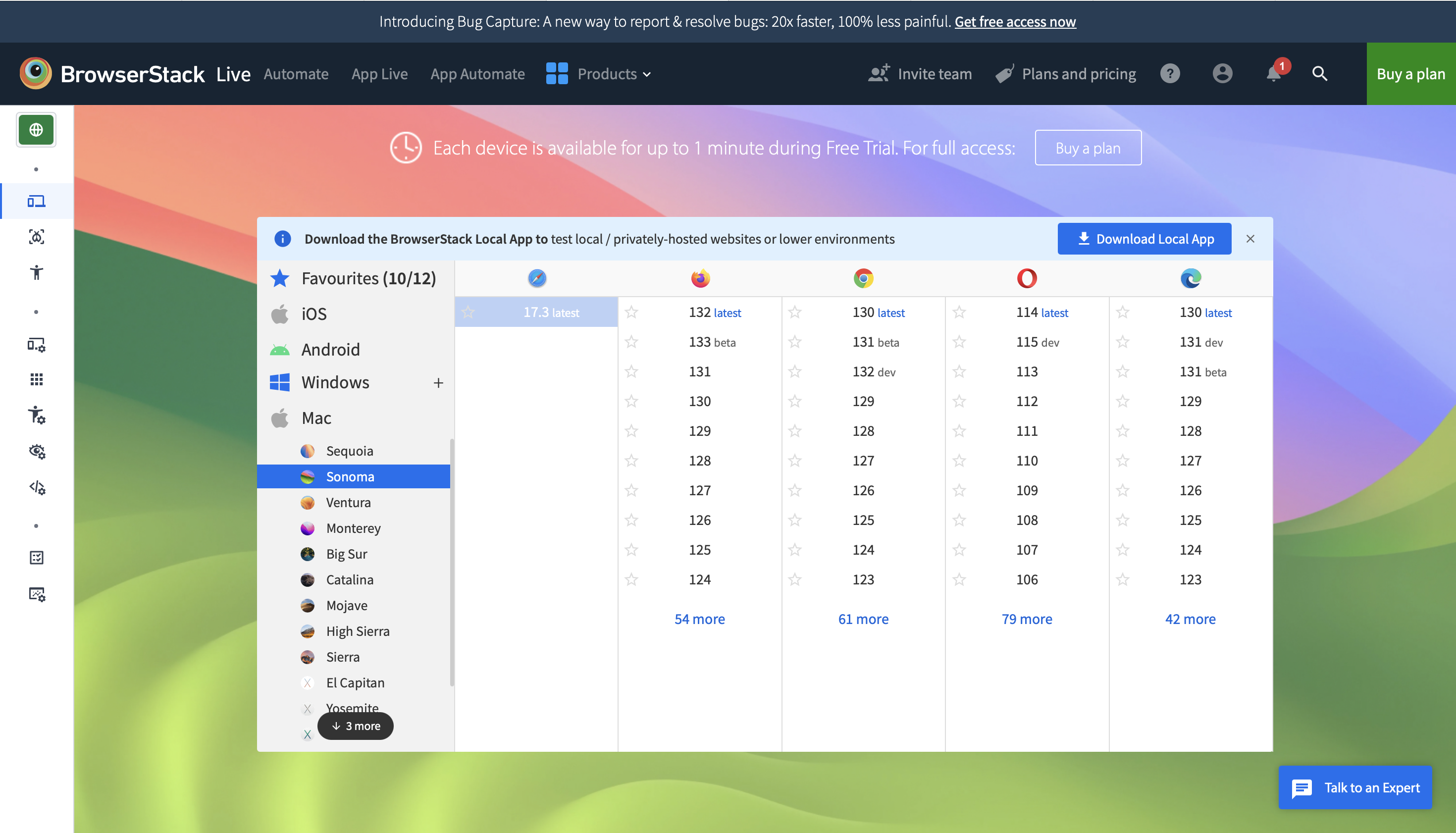
Step 2. Check Safari’s JavaScript settings:
For Mac: Go to Safari > Settings > Security

For iOS: Go to Settings > Safari > Advanced
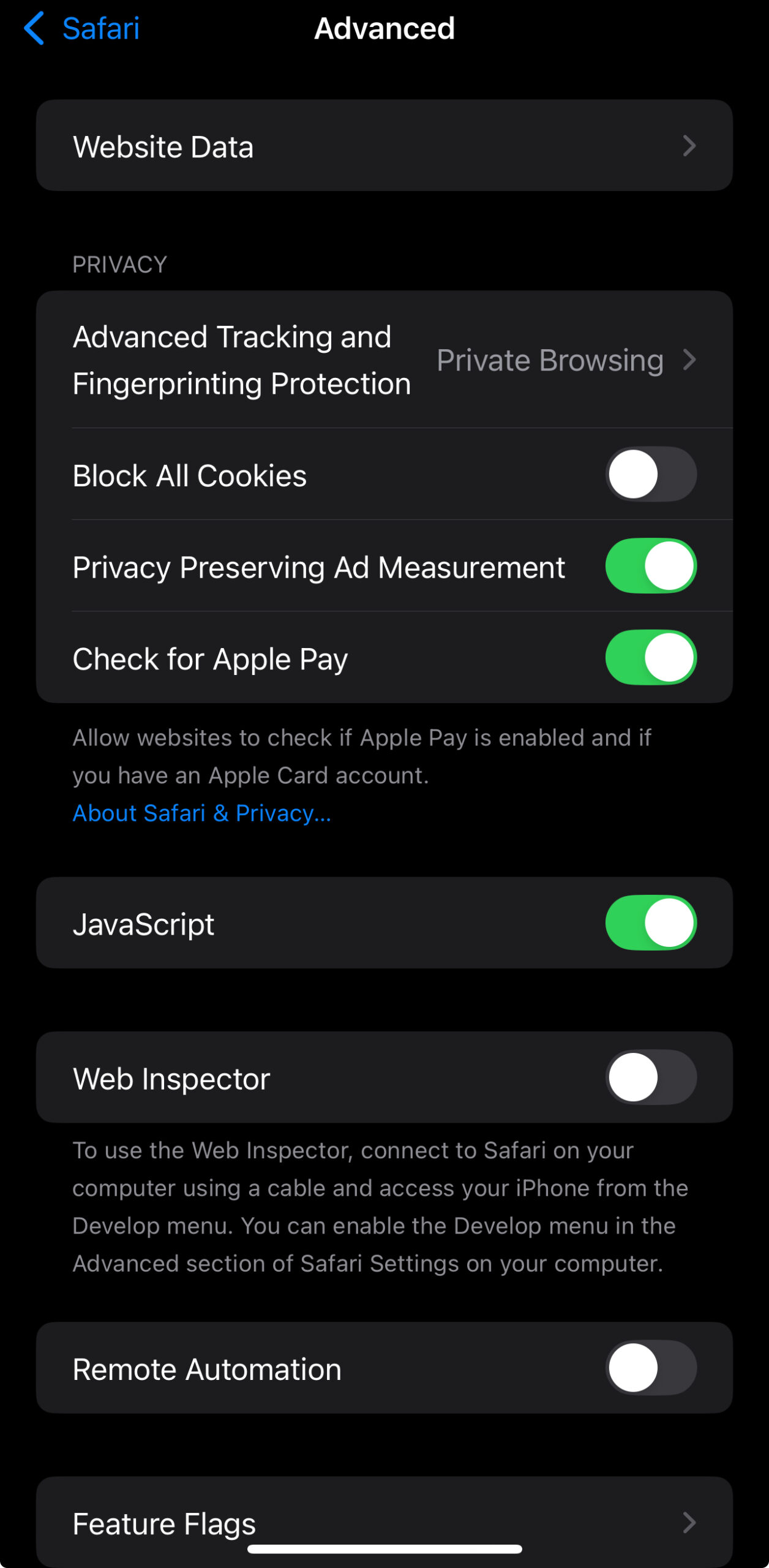
Step 3. Look for JavaScript-dependent elements on websites:
- Interactive buttons not working.
- Forms not validating.
- Dynamic content not loading.
- Error messages about JavaScript being required.
Read More: How to test JavaScript in Browser?
How to Enable JavaScript on Safari
Before diving into the specific steps, it’s important to note that enabling Safari JavaScript settings follows slightly different paths depending on your device.
While Mac users access these settings through the Safari browser menu, iOS users need to navigate through their device settings.
Below is a comprehensive guide for both platforms.
Step-by-Step Guide on Enabling JavaScript in Safari Mac
Follow these simple steps to enable JavaScript in Safari browser on your Mac:
1. Open Safari browser
2. Click on Safari in the top menu bar
3. Select Settings (or Preferences in older versions)
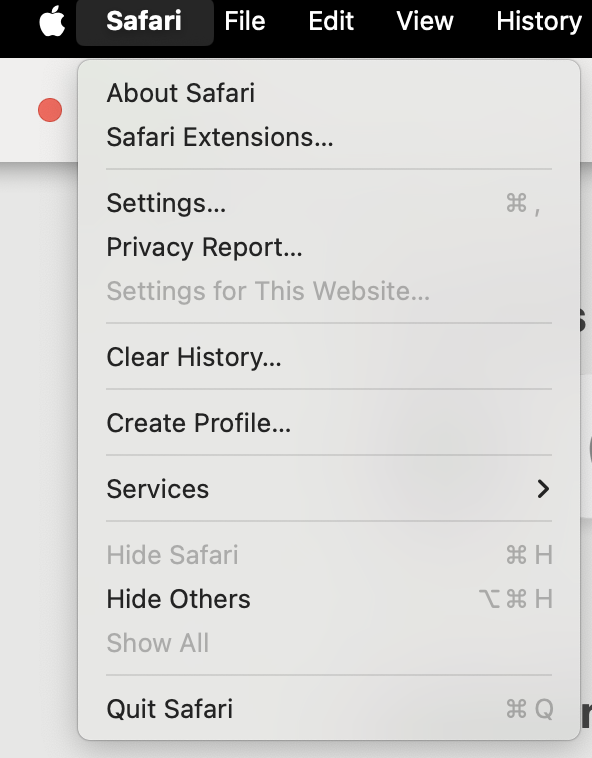
4. Click on Security tab
5. Check the box next to Enable JavaScript

Step-by-Step Guide on Enabling JavaScript in Safari on iOS
For iPhone and iPad users, here’s how to enable Safari JavaScript functionality:
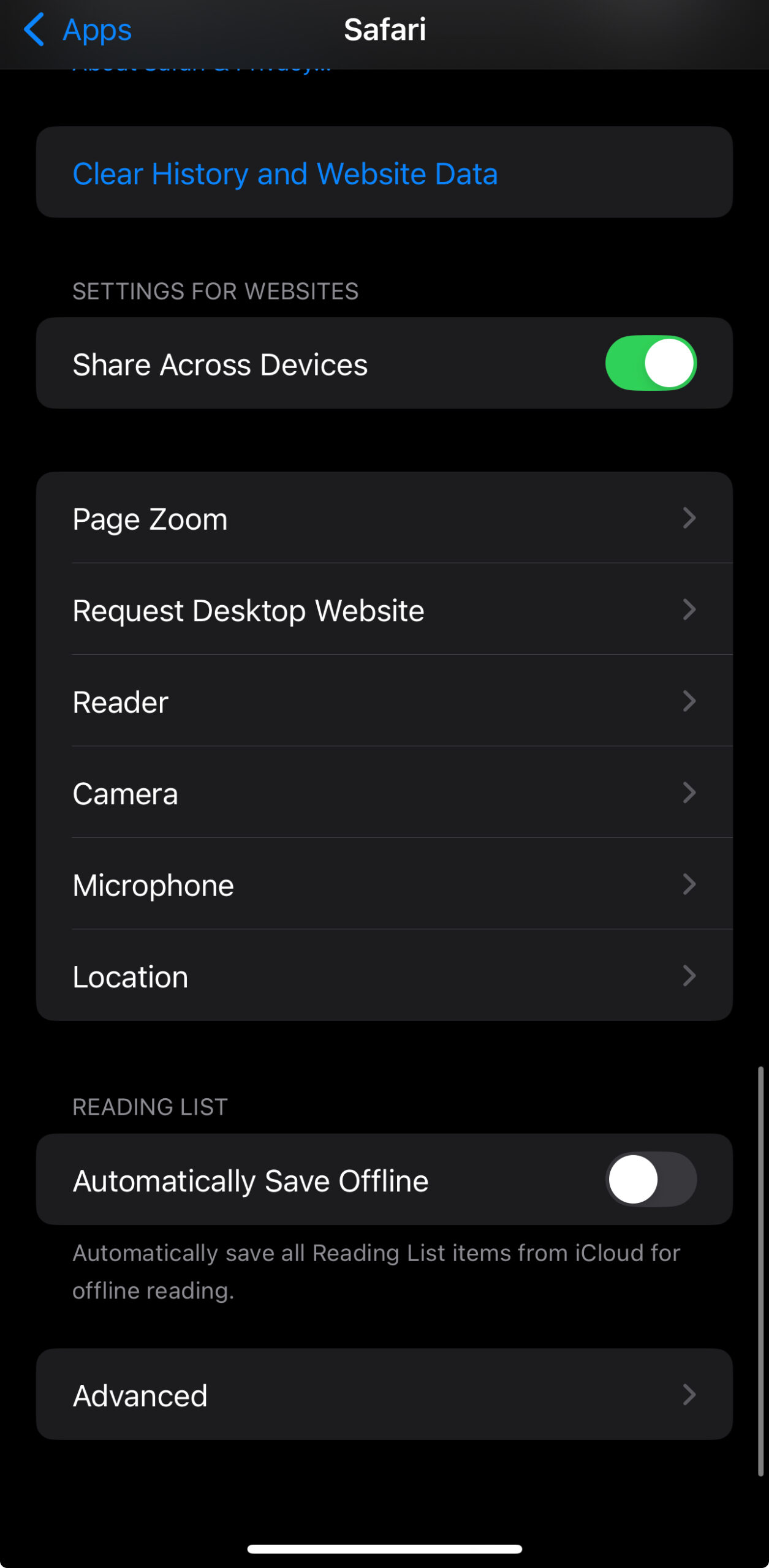
1. Open the Settings app on your iOS device
2. Scroll down in the Apps and tap on Safari
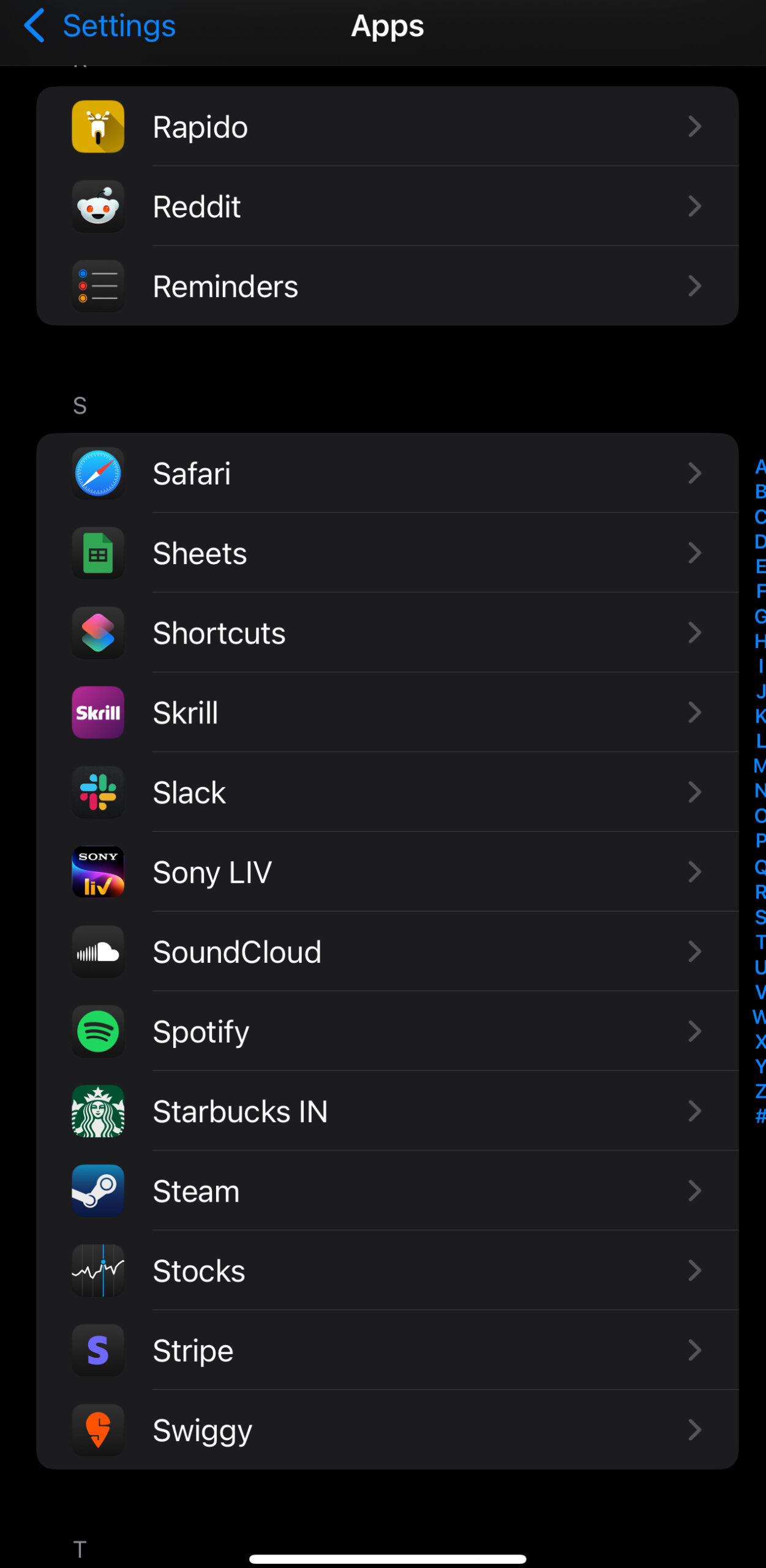
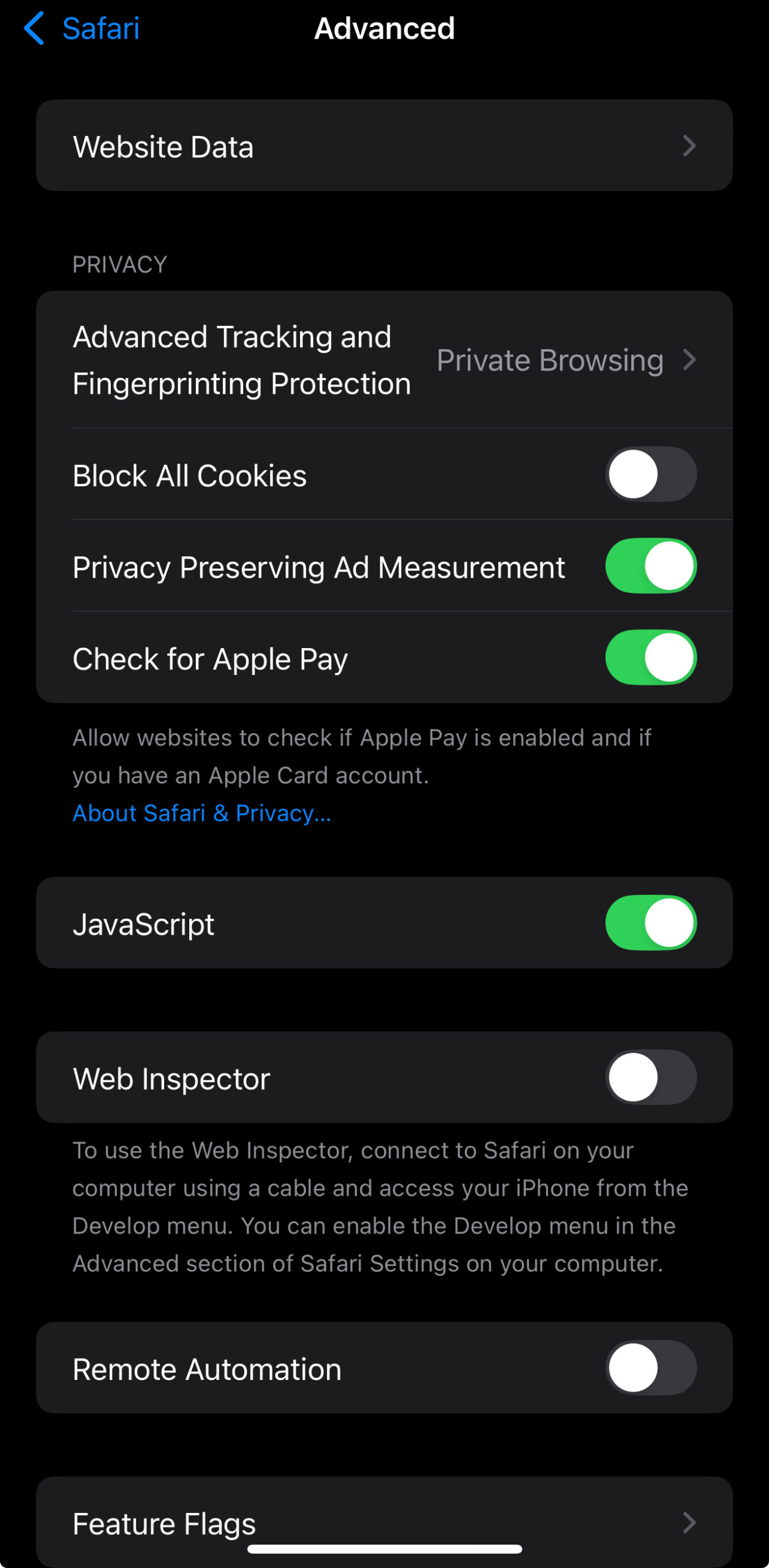
3. Scroll down and tap on Advanced
4. Toggle JavaScript to ON (the toggle should turn green)
Test JavaScript Functionality on Real Devices
While enabling JavaScript in Safari is straightforward, ensuring it works correctly across different versions and devices can be challenging. This is where BrowserStack becomes invaluable for developers and QA teams.

- Access to Real Devices: Test your JavaScript functionality on real Safari browsers across multiple iOS versions and Mac configurations.
- No Setup Required: Start testing immediately without complex device configurations.
- Live Interactive Testing: Debug JavaScript issues in real-time on actual Safari browsers.
- Comprehensive Testing Environment: Verify JavaScript compatibility across different Safari versions simultaneously.
- Development Tools Integration: Built-in developer tools for debugging Safari JavaScript issues.
- Automated Testing Capabilities: Automate JavaScript tests across multiple Safari versions for efficient testing.
Also Read: How to Debug JS in Chrome?
Conclusion
Enabling JavaScript in the Safari browser is crucial for experiencing the modern web as intended. Whether using Safari on Mac or iOS, the process is straightforward and essential for accessing dynamic web content.
While manually enabling Safari JavaScript is simple, ensuring consistent functionality across different versions and devices requires comprehensive testing.
Tools like BrowserStack provide the perfect solution for developers and teams who need to verify their JavaScript implementations across various Safari browser versions and configurations.
Frequently Asked Questions
How to view JavaScript in Safari?
To view JavaScript in Safari browser, you can access the JavaScript console through a few simple steps:
1. Enable Safari’s Developer Menu:
- Go to Safari > Settings > Advanced
- Check Show Develop menu in menu bar
2. Access JavaScript Console:
- Click on Develop in the menu bar
- Select Show JavaScript Console (or press Cmd + Option + C)
3. View Running JavaScript:
- The console will display active JavaScript operations
- Use the Elements tab to inspect JavaScript events on page elements


 Featured Article



