
Many testers assume Selenium’s basic commands can handle all user interactions.
I believed that too—until a simple click failed on an element that required a hover or advanced mouse action.
After wasting hours tweaking waits and locators, I realized the issue wasn’t Selenium but how I handled user interactions.
That’s when the Action Class became essential.
Overview
The Action Class in Selenium is used to handle advanced user interactions such as mouse movements, hover actions, double-clicks, and drag-and-drop operations that cannot be performed using basic WebDriver commands.
Key Purpose of Action Class:
Basic WebDriver commands are sufficient for straightforward interactions with static elements. However, the Action Class becomes essential when working with modern, interactive web applications that require more complex user behavior, such as:
- Mouse hover actions: Triggering menus, tooltips, or hidden elements that appear only on hover
- Drag-and-drop operations: Validating features that involve moving elements between locations
- Context (right) clicks: Interacting with custom context menus
- Keyboard combinations: Simulating key sequences like Ctrl + C, Ctrl + V, or Shift + Enter.
Common Methods of Action Class:
- click(): Clicks on a web element
- moveToElement(): Performs mouse hover on an element
- doubleClick(): Performs a double-click action
- contextClick(): Performs a right-click action
- dragAndDrop(): Drags an element and drops it to a target location
Usage Example:
Actions actions = new Actions(driver);

WebElement element = driver.findElement(By.id("menu"));

actions.moveToElement(element).click().perform();
This article discusses what Action Class is, its methods, and how to handle it in Selenium.
What is Action Class in Selenium?
The Actions class in Selenium allows handling advanced keyboard and mouse events, enabling interactions such as drag-and-drop, clicking multiple elements with the Control key, and more.
These actions are managed through Selenium’s advanced user interactions API, providing the functionality needed for complex operations during test automation.
According to Sarah Thomas, a software testing expert, using the Actions class thoughtfully—by chaining only the required interactions and ensuring elements are in the expected state before performing actions, helps create more stable and readable tests.
This approach reduces flaky behavior in dynamic UIs and makes automation scripts easier to maintain as applications evolve.
Action class is defined and invoked using the following syntax:
Actions action = new Actions(driver);

action.moveToElement(element).click().perform();
As these advanced interactions are often sensitive to browser behavior and timing, validating them across different environments becomes critical.
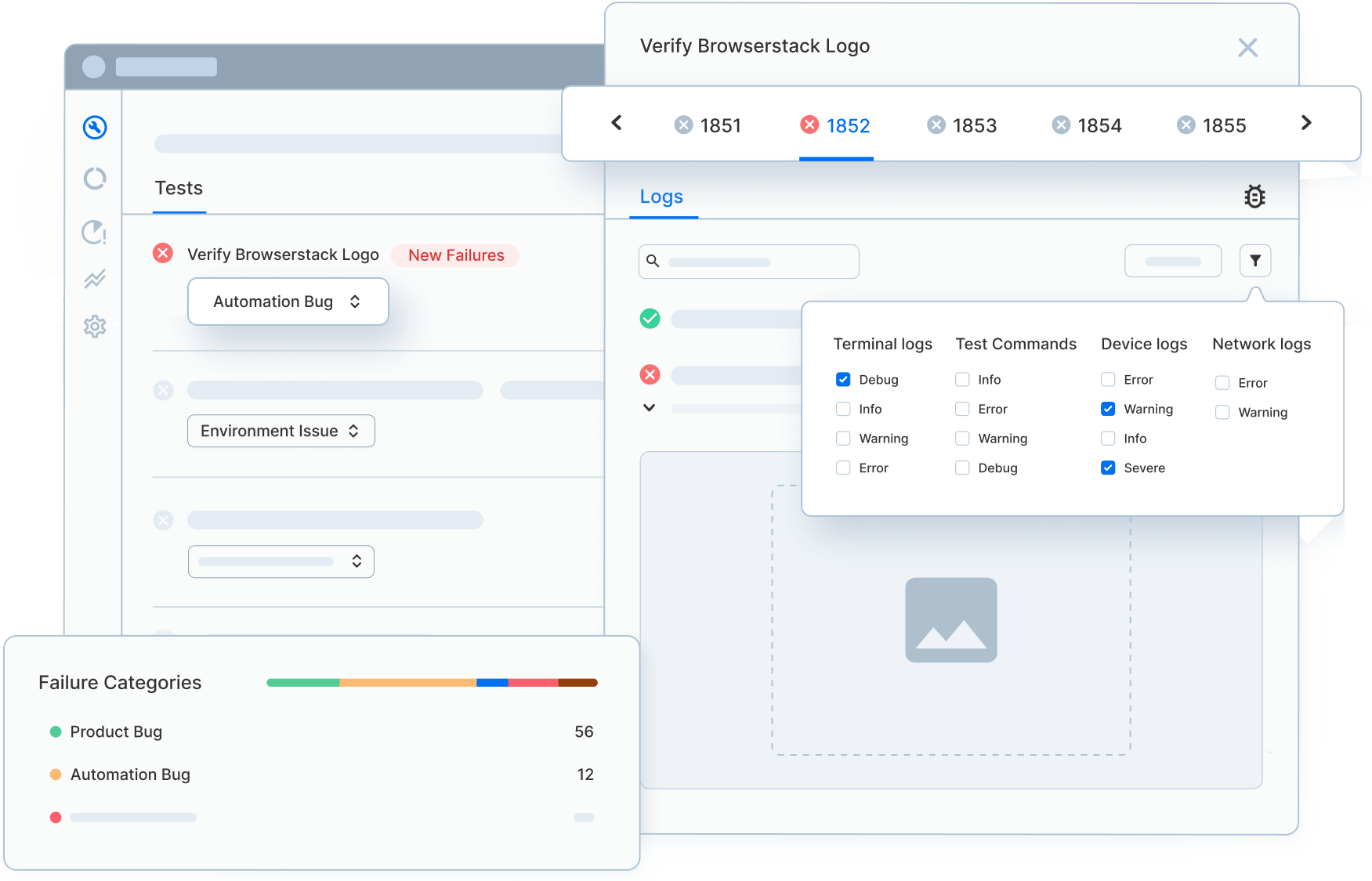
Platforms like BrowserStack Automate allow teams to run Action Class–based Selenium tests on real browsers and devices, capturing screenshots, videos, and logs to make debugging complex user interactions faster and more reliable.
Methods of Action Class
Action class is useful mainly for mouse and keyboard actions. In order to perform such actions, Selenium provides various methods.
Mouse Actions in Selenium:
- doubleClick(): Performs double click on the element
- clickAndHold(): Performs long click on the mouse without releasing it
- dragAndDrop(): Drags the element from one point and drops to another
- moveToElement(): Shifts the mouse pointer to the center of the element
- contextClick(): Performs right-click on the mouse
Keyboard Actions in Selenium:
- sendKeys(): Sends a series of keys to the element
- keyUp(): Performs key release
- keyDown(): Performs keypress without release
Importance of Action Classes in Web Automation
The Action class plays a crucial role in web automation, particularly when simulating real-world user interactions that go beyond basic click and type actions. Here’s why it’s important:
- Simulates Real-World User Behavior: Web applications often involve complex interactions, like hovering over elements, drag-and-drop, or multi-key presses. The Action class allows testers to mimic these behaviors accurately, ensuring that applications are tested under realistic conditions.
- Enables Advanced Interaction Scenarios: Many modern web applications require advanced actions such as right-clicks, double-clicks, or dragging elements across the page. The Action class makes it possible to automate these scenarios, which are essential for testing dynamic and interactive elements.
- Improves Test Coverage: By enabling a wide range of user interactions, the Action class enhances test coverage, helping identify issues that may arise from complex user inputs or unexpected actions, which might be missed with basic automation.
- Increases Test Reliability: Handling complex interactions programmatically helps ensure consistent behavior across test runs, reducing the chances of false positives or negatives that might occur with manual testing or simpler automation scripts.
- Supports Cross-Browser Compatibility: Web automation often requires testing across different browsers. The Action class ensures that advanced interactions work consistently across various browser environments, making tests more robust and reliable.
Read More: Architecture of Selenium WebDriver
Examples of Action Class in Selenium
To better understand how these interactions work in practice, let’s look at some common examples of using the Action Class in Selenium.
1. Perform Click Action on the Web Element
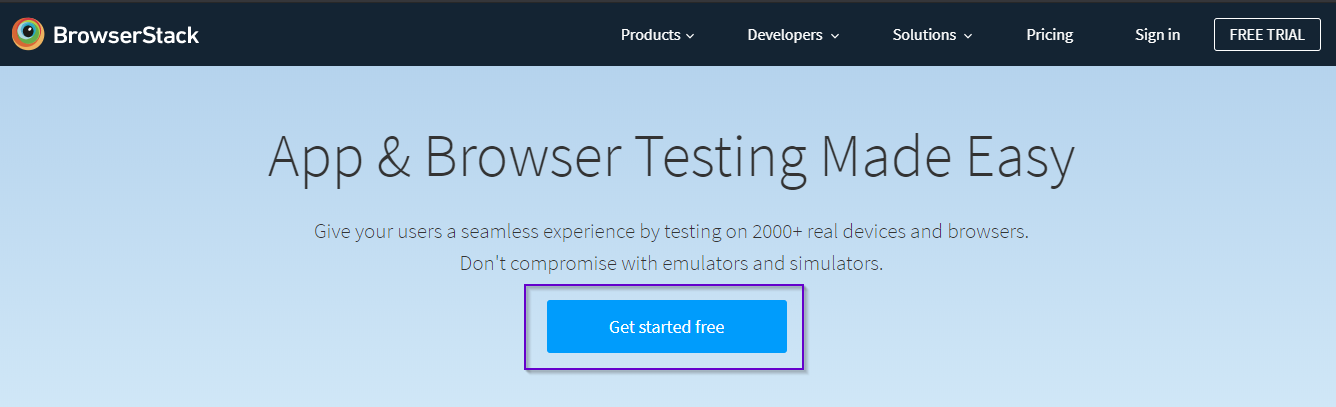
Test Scenario: Visit the Browserstack home page and click on the Get Started Free button.
Code Snippet:
driver.get("https://www.browserstack.com/");
Actions action = new Actions(driver);
element = driver.findElement(By.linkText("Get started free"));

action.moveToElement(element).click();

//using click action method
Follow-up Read: Understanding Click Command in Selenium
2. Perform Mouse Hover Action on the Web Element
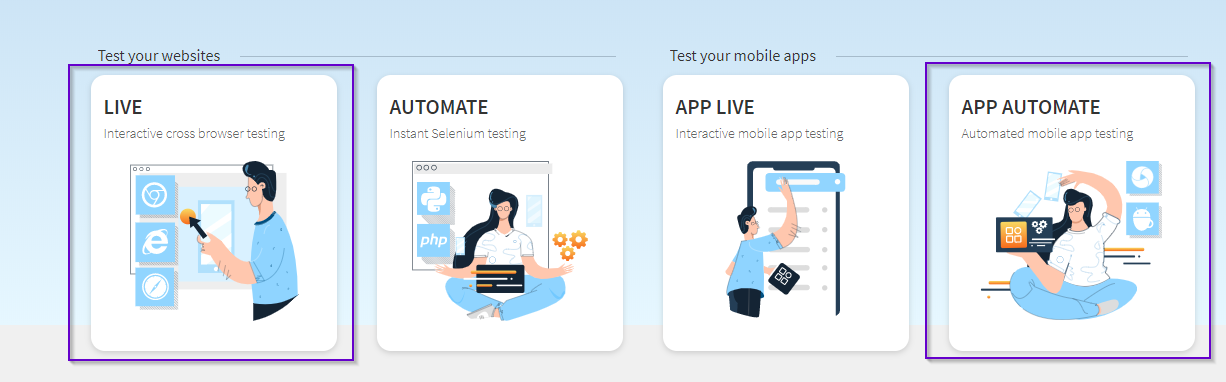
Test Scenario: Perform Mouse Hover on Live Tab and App Automate Tab on the Browserstack Website.
Code Snippet:
import org.openqa.selenium.By;

import org.openqa.selenium.JavascriptExecutor;

import org.openqa.selenium.WebDriver;

import org.openqa.selenium.WebElement;

import org.openqa.selenium.chrome.ChromeDriver;

import org.openqa.selenium.interactions.Actions;

public class Mouse {

   public static void main(String[] args) throws InterruptedException {

System.setProperty("webdriver.chrome.driver", "D:\\Selenium\\chromedriver_win32\\chromedriver.exe");

         WebDriver driver = new ChromeDriver();

       driver.manage().window().maximize();

       driver.get("https://www.browserstack.com/");

       ((JavascriptExecutor) driver).executeScript("scroll(0,300)");

       Actions ac = new Actions(driver);

WebElement live= driver.findElement(By. cssSelector("div.product-cards-wrapper--click a[title='Live']"));
ac.moveToElement(live).build().perform();

Thread.sleep(3000);

WebElement automate= driver.findElement(By.cssSelector("div.product-cards-wrapper--click a[title='App Automate']"));  automate.click();

Thread.sleep(2000);

//Thread.sleep(4000);

driver.quit();

   }

}
The code above will perform the mouse hover using Selenium on the Live tab and then move to the App Automate tab and click.
Also Read: Quick XPath Locators Cheat Sheet
3. Perform Double Click Action on the Web Element
Test Scenario: Perform Double Click Action on Free Trial Button in the Browserstack Home page.

Code Snippet:
import org.openqa.selenium.By;

import org.openqa.selenium.WebDriver;

import org.openqa.selenium.WebElement;

import org.openqa.selenium.chrome.ChromeDriver;

import org.openqa.selenium.interactions.Actions;

public class Mouse {

public static void main(String[] args) throws InterruptedException {

System.setProperty("webdriver.chrome.driver", "D:\\Selenium\\chromedriver_win32\\chromedriver.exe");

WebDriver driver = new ChromeDriver();

driver.manage().window().maximize();

driver.get("https://www.browserstack.com/");

Actions a = new Actions(driver);


//Double click on element

WebElement trialaction = driver.findElement(By.xpath("//a[@id='free-trial-link-anchor']"));

a.doubleClick(trialaction).perform();

   }

}
In the code above, the Action class is created to perform the double click action on the element named Free Trial.
Want to try executing the above code on real browsers and devices on the cloud?
Note: The Selenium Actions class is useful for performing actions on any element on the screen by specifying x and y coordinates. It is possible to locate more than one web element using the Actions class.
Using Action class in Selenium is of utmost importance in automated testing. This article simplifies the process so that testers know how to simulate common user actions on websites and applications. This lets them monitor software behavior in the real user conditions so that they can verify and optimize user experience for its best possible state.
Read More: Locators in Selenium
How to use Action Class in Selenium on Real Devices using BrowserStack Automate
Below code explains how to click, double click, right click, hover and send keys on web element using Actions class in Selenium on BrowserStack Automate’s Real Device Cloud:
import java.net.MalformedURLException;

import java.net.URL;

import java.util.HashMap;

import org.openqa.selenium.By;

import org.openqa.selenium.MutableCapabilities;

import org.openqa.selenium.WebDriver;

import org.openqa.selenium.WebElement;

import org.openqa.selenium.interactions.Actions;

import org.openqa.selenium.remote.RemoteWebDriver;

import org.testng.annotations.AfterMethod;

import org.testng.annotations.BeforeTest;

import org.testng.annotations.Test;


public class Mouse {


    public static String username = "<username>";

    public static String accesskey = "<access key>";

    public static final String URL = "https://" + username + ":" + accesskey + "@hub-cloud.browserstack.com/wd/hub";

    WebDriver driver;

    String url = "https://www.browserstack.com/";

    Actions act;


    MutableCapabilities capabilities = new MutableCapabilities();

    HashMap<String, Object> bstackOptions = new HashMap<String, Object>();


    @BeforeTest

    public void setUp() throws MalformedURLException {


        capabilities.setCapability("browserName", "Chrome");

        bstackOptions.put("os", "Windows");

        bstackOptions.put("osVersion", "11");

        bstackOptions.put("browserVersion", "latest");

        bstackOptions.put("consoleLogs", "info");

        bstackOptions.put("seleniumVersion", "3.14.0");

        capabilities.setCapability("bstack:options", bstackOptions);

        driver = new RemoteWebDriver(new URL(URL), capabilities);

        driver.get(url);

        driver.manage().window().maximize();

        act = new Actions(driver);

    }


    @Test

    void doubleClick() {

        WebElement trialaction = driver.findElement(By.cssSelector("a[title='Free Trial']"));

        //Double click on element

        act.doubleClick(trialaction).perform();

    }


    @Test

    void rightClick() {

        WebElement trialaction = driver.findElement(By.cssSelector("a[title='Free Trial']"));

        //Right click on element

        act.contextClick(trialaction).perform();

    }


    @Test

    void hover() {

        WebElement products = driver.findElement(By.cssSelector("button#products-dd-toggle"));

        //Mouse hover on element

        act.moveToElement(products).perform();

    }


    @Test

    void clickAndsendKeys() {

        WebElement search = driver.findElement(By.xpath(

                "//button[@class='bstack-mm-search-menu doc-search-menu dropdown-toggle doc-search-cta doc-search-menu-icon doc-menu-toggle hide-sm hide-xs']"));

        //Click on element

        act.click(search).perform();

        WebElement searchBox = driver.findElement(By.cssSelector("input#doc-search-box-input"));

        //Send keys on element

        act.sendKeys(searchBox, "Selenium").perform();

    }


    @AfterMethod

    void tearDown() {

        driver.get(url);

    }

}
Why use BrowserStack Automate for Selenium Tests?
BrowserStack Automate offers a powerful platform for running Selenium tests with several key benefits:
- Parallel Testing: Run tests on multiple devices and browsers at once, significantly speeding up test cycles and increasing coverage.
- Real Devices and Browsers: Test on real mobile devices and browsers without purchasing physical devices, ensuring accurate app performance and functionality.
- Dedicated Dashboard: Track test execution status with detailed reports on pass/fail results, environment info, test duration, and screenshots, making test management easy.
- Custom Reports: Generate tailored reports with logs, screenshots, and video recordings to meet your specific needs, enhancing test insights.
- CI/CD Integration: Seamlessly integrate with CI/CD tools like Jenkins and TravisCI for automated testing within your continuous integration pipeline.
- Comprehensive Test Coverage: Test across a wide range of real desktop and mobile browsers, ensuring cross-browser compatibility.
- Interactive Debugging: Use live video playback, logs, and screenshots to quickly diagnose and resolve issues during test execution.
Conclusion
The Actions class in Selenium plays a vital role in automating mouse and keyboard events in web applications. It provides various methods such as click, mouse hover, double click, content click, drag and drop to simulate actions on web elements.
With Actions class one can interact with the website in the same way as a real time user would allowing them to test and verify complex interactions. This lets them monitor software behavior in the real user conditions so that they can verify and optimize user experience for its best possible state.