Have you ever assumed that writing Selenium code for a login page is the easiest part of automation? I did—until a simple login script kept failing for reasons I couldn’t pin down.
One run would pass, the next would break because an element loaded late or a button wasn’t clickable.
I kept adjusting waits, rewriting locators, even rerunning the same steps manually, but nothing made the flow consistently reliable.
That’s when I realized the issue wasn’t Selenium — it was that I treated login as a trivial step instead of a structured process. Once I understood how to locate elements correctly, synchronize interactions, and validate each step, everything clicked into place.

This guide walks you through each step of automating login functionality using Selenium WebDriver—from setting up prerequisites and configuring browsers to verifying actions and running tests on real device clouds.
Overview
Selenium code for a login page typically involves locating the username, password, and login button elements, entering credentials, and verifying a successful login. A reliable script uses proper waits, accurate locators, and clear validation steps.
Example: Selenium Login Script (Java)
import org.openqa.selenium.By;

import org.openqa.selenium.WebDriver;

import org.openqa.selenium.WebElement;

import org.openqa.selenium.chrome.ChromeDriver;

import org.openqa.selenium.support.ui.ExpectedConditions;

import org.openqa.selenium.support.ui.WebDriverWait;


public class LoginTest {

    public static void main(String[] args) {


        WebDriver driver = new ChromeDriver();

        driver.get("https://example.com/login");


        WebDriverWait wait = new WebDriverWait(driver, 10);


        WebElement username = wait.until(

                ExpectedConditions.visibilityOfElementLocated(By.id("username"))

        );

        WebElement password = driver.findElement(By.id("password"));

        WebElement loginBtn = driver.findElement(By.id("loginButton"));


        username.sendKeys("testuser");

        password.sendKeys("password123");

        loginBtn.click();


        wait.until(ExpectedConditions.urlContains("dashboard"));


        System.out.println("Login Successful");

        driver.quit();

    }

}
Explanation of Key Elements
- WebDriver & Browser Setup: Initializes the browser and opens the login URL.
- Explicit Wait (WebDriverWait): Ensures elements like the username field appear before interaction—essential for reducing flaky login tests.
- Locating Elements (By.id): Uses stable selectors (IDs) to fetch username, password, and login button fields.
- Performing Actions: sendKeys() enters the credentials, and click() triggers the login attempt.
- Validation: Checks if the URL contains “dashboard” to confirm a successful login.
Prerequisites for Login Automation using Selenium Webdriver
Login automation in Selenium offers several advantages that streamline testing and improve reliability. It saves valuable time by eliminating repetitive manual logins, while ensuring accuracy through consistent validation of authentication workflows. Automated login tests can be executed across multiple browsers and devices to guarantee cross-platform compatibility.
To successfully implement login automation, certain prerequisites must be in place before beginning with Selenium WebDriver.
- Download and Install JDK(Java Development Kit)
- Install Eclipse from the official website
- Download the Selenium Java Client version
- Configure the drivers depending on the browser. The example here will be using a chrome driver for Chrome
Read More: How to configure Selenium in Eclipse
Steps for Login Automation using Selenium WebDriver
With the prerequisites in place, the next focus is on the key steps involved in performing login automation using Selenium WebDriver.
1. Create a Selenium WebDriver instance
To launch the website in the desired browser, set the system properties to the path of the driver for the required browser. This example will use ChromeDriver for Login Automation using Selenium Webdriver. The syntax for the same will be:
Webdriver driver = new ChromeDriver();
System.setProperty("webdriver.chrome.driver", "Path of the chrome driver");
2. Configure the Web browser
Usually, the web page will be in a minimized format when the test case is run. Maximize the browser for a clear picture of the test cases executed. Use the command below to do the same:
driver.manage.window.maximize();
3. Navigate to the web URL
Open the browser with the desired URL. Use the command below to open the URL in the desired instantiated browser:
driver.get("https://www.browserstack.com/users/sign_in");4. Locating the Web Element
Locators are an essential part of every Selenium script, as they identify the elements the test interacts with to accurately replicate user actions.
According to Robin Gupta, “the concept of locators is very important because it helps the automation script locate elements on the screen and therefore interact with them,” making their correct use especially critical in login automation where reliability and accuracy are non-negotiable.
For example, let’s try to locate the email and password field of the login form of Browserstack sign in page.
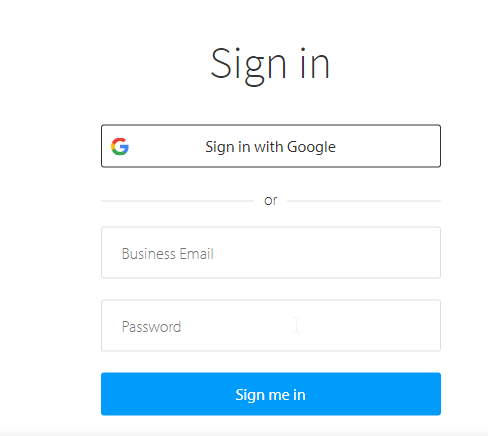
Inspect the email field to locate the element using the ID locator, as shown in the image below:
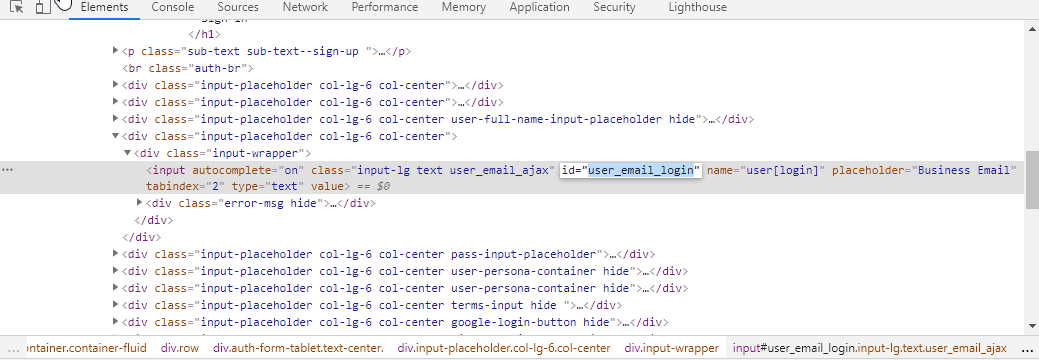
Locate it via the ID locator in Selenium WebDriver:
driver.findElement(By.id("user_email_login"));Since this returns a webelement, store it in webelement variable with:
WebElement username=driver.findElement(By.id("user_email_login"));Read More: findElement vs findElements in Selenium
Repeat the same steps for the password field.
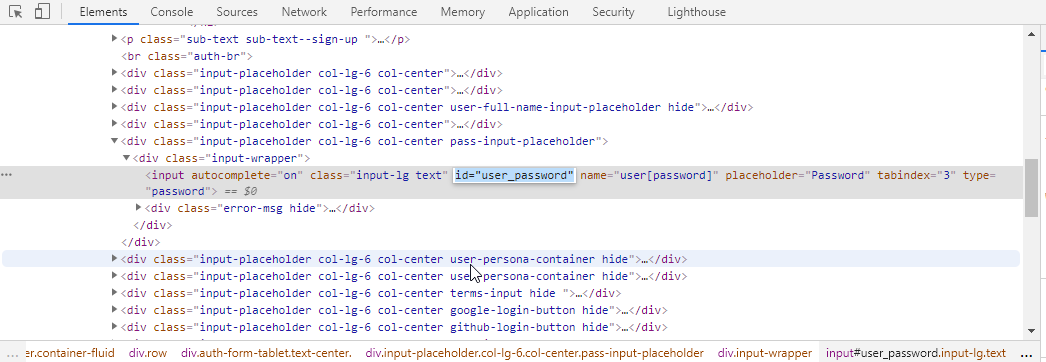
driver.findElement(By.id("user_password"));
WebElement password=driver.findElement(By.id("user_password"));
5. Perform Action on the Located Web Element
After locating the element, testers need to perform the desired action. In this case, the action is entering text in the email and password fields and hitting the login button. For this, the script uses sendKeys and click methods, as shown below:
username.sendKeys("abc@gmail.com");
password.sendKeys("your_password");
login.click();
Read More: How to perform Double Click in Selenium
6. Verify & Validate The Action
To validate the results, use assertion. Assertions are important for comparing the expected results to the actual results. If it matches, the test case passes. If not, then the test case fails. The syntax below will help to assert (validate) the outcome from actions by performing login automation:
Assert.assertEquals(String actual, String expected);
Save the actual URL post-login into a string value, which is:
String actualUrl="https://www.browserstack.com/users/sign_in";
The Expected URL can be identified by using the method below:
String expectedUrl= driver.getCurrentUrl();
The final assertion would look like:
Assert.assertEquals(actualUrl, expectedUrl);
If the test case is passed, it will retrieve the same. Else it will return as failed.
Given below is the full selenium code for automating login page in chrome using Selenium WebDriver:
import org.openqa.selenium.By;
import org.openqa.selenium.WebDriver;
import org.openqa.selenium.WebElement;
import org.openqa.selenium.chrome.ChromeDriver;
import org.testng.Assert;
import org.testng.annotations.Test;
public class LoginAutomation {
@Test
public void login() {
System.setProperty("webdriver.chrome.driver", "path of driver");
WebDriver driver=new ChromeDriver();
driver.manage().window().maximize();
driver.get("https://www.browserstack.com/users/sign_in");
WebElement username=driver.findElement(By.id("user_email_Login"));
WebElement password=driver.findElement(By.id("user_password"));
WebElement login=driver.findElement(By.name("commit"));
username.sendKeys("abc@gmail.com");
password.sendKeys("your_password");
login.click();
String actualUrl="https://live.browserstack.com/dashboard";
String expectedUrl= driver.getCurrentUrl();
Assert.assertEquals(expectedUrl,actualUrl);
}
}
Automating login workflows using Selenium is foundational, but making those tests reliable, maintainable, and scalable requires expert insights.
Get Expert QA Guidance Today
Schedule a call with BrowserStack QA specialists to discuss your testing challenges, automation strategies, and tool integrations. Gain actionable insights tailored to your projects and ensure faster, more reliable software delivery.
Run Login Automation using Selenium WebDriver
The outlined steps form the foundation, and the next stage focuses on running the login automation using Selenium WebDriver to validate functionality in action.
import java.net.MalformedURLException;

import java.net.URL;

import java.util.HashMap;


import org.openqa.selenium.By;

import org.openqa.selenium.MutableCapabilities;

import org.openqa.selenium.WebDriver;

import org.openqa.selenium.WebElement;

import org.openqa.selenium.remote.RemoteWebDriver;

import org.testng.Assert;

import org.testng.annotations.BeforeTest;

import org.testng.annotations.Test;


public class LoginAutomation {


    public static String username = "<username>";

    public static String accesskey = "<access key>";

    public static final String URL = "https://" + username + ":" + accesskey + "@hub-cloud.browserstack.com/wd/hub";

    WebDriver driver;

    String url = "https://www.browserstack.com/users/sign_in";

    MutableCapabilities capabilities = new MutableCapabilities();

    HashMap<String, Object> bstackOptions = new HashMap<String, Object>();


    @BeforeTest

    public void setUp() throws MalformedURLException {

        capabilities.setCapability("browserName", "Chrome");

        bstackOptions.put("os", "Windows");

        bstackOptions.put("osVersion", "11");

        bstackOptions.put("browserVersion", "latest");

        bstackOptions.put("consoleLogs", "info");

        bstackOptions.put("seleniumVersion", "3.14.0");

        capabilities.setCapability("bstack:options", bstackOptions);

        driver = new RemoteWebDriver(new URL(URL), capabilities);

        driver.get(url);

        driver.manage().window().maximize();

    }


    @Test

    public void login() {

        //driver.manage().timeouts().implicitlyWait(Duration.ofSeconds(2));

        WebElement username = driver.findElement(By.cssSelector("input#user_email_login"));

        WebElement password = driver.findElement(By.cssSelector("input#user_password"));

        WebElement login = driver.findElement(By.name("commit"));

        username.sendKeys("youremail@domain.com");

        password.sendKeys("yourpassword");

        login.click();

        String actualUrl = "https://live.browserstack.com/dashboard";

        String expectedUrl = driver.getCurrentUrl();

        Assert.assertEquals(expectedUrl, actualUrl);

    }

}
After running the above programs, you can check the result on the Automate Dashboard page.
Why Run Selenium Login Tests using Real Device Cloud?
Login functionality is one of the most critical parts of any web application. It’s the gateway to the product – if users can’t log in reliably, they can’t use the application at all. That’s why accurate, consistent testing of login flows is essential for any authentication-based system.
But login behavior doesn’t stay consistent across different environments. Variations in devices, screen sizes, resolutions, and browsers can directly impact:
- Element visibility and layout
- Field interactions and timing
- JavaScript execution
- Rendering of login forms and buttons
In today’s rapidly evolving mobile and web ecosystem, maintaining an in-house lab with every device–browser combination is neither scalable nor cost-effective.
This is where BrowserStack Automate transforms the workflow. With its cloud-based infrastructure, teams get:
- Instant access to 3500+ real devices and browsers
- Parallel execution to speed up Selenium login test suites
- Seamless CI/CD integration for continuous authentication testing
- Advanced debugging tools including videos, screenshots, console logs, and network logs
By running login automation on BrowserStack, QA teams can validate authentication flows across real user conditions—accurately, quickly, and without the burden of device maintenance—ensuring a consistent and reliable login experience for every user.
Conclusion
On executing the code, Selenium will navigate to the Chrome browser and open the BrowserStack login page. Then, it will log in using the relevant credentials. It will also check the test case status using Assert and try to match the URL.
Follow the steps and protocol detailed above to automate the login function of websites with Selenium. Remember to leverage the power of real browsers and devices along with Selenium’s many abilities to create immediately effective test scripts that generate desirable results with minimal time and effort.
It is always recommended to run Selenium Tests on real devices to take real user conditions into account and ensure better accuracy. BrowserStack Real Device Cloud provides access to 3500+ real devices and browsers for a seamless and comprehensive testing experience. You can also run multiple tests on different browser-device combinations with parallel testing using BrowserStack Cloud Selenium Grid.