Most people assume Appium is just another automation tool for mobile testing. It isn’t.
The real power of Appium isn’t in automating tests—it’s in creating one unified testing layer that works across Android, iOS, and even desktop and web apps, without changing your code.
There’s a reason why teams using Appium report up to 40% faster test coverage and 30% lower maintenance overhead.
In this guide I will walk you through what is Appium testing, how to configure Appium and expert suggestions on testing using Appium.
Overview
Features of Appium:
- Operates as a standalone server, enabling remote and distributed execution
- Integrates with TestNG for richer assertions, reporting, and parallelism
- Uses UIAutomator for detailed logs and structured reporting
- Supports multiple languages like Java, JavaScript, Python, Ruby, C#, and PHP
- Allows code reuse across iOS, Android, and Windows
- Lets tests access backend APIs and databases for deeper defect analysis
- Requires no app modification or recompilation; works with standard automation APIs
- Supports real devices, emulators, and simulators, with real devices recommended for accurate results
- Offers strong cross-platform compatibility for broader coverage
- Provides real-time test monitoring for better visibility
- Enables parallel execution across multiple device sessions for faster, scalable testing
- Works seamlessly with native, hybrid, and mobile web apps
What is Appium?
Appium is an open-source framework that allows QAs to conduct automated app testing on different platforms like Android, iOS, and Windows.
It automates testing for:
- Native Mobile Applications that are written using iOS, Android, or Windows SDKs
- Mobile Web Applications that can be accessed using mobile browsers such as Safari, Chrome, or in-built native browser applications for android devices
- Hybrid Mobile Applications that have a native wrapper around the web view
Appium is a cross-platform testing framework that is flexible, enabling testers to write test scripts against multiple platforms such as iOS, Windows, and Android using the same API. That means QAs can use the same code for iOS as for Android, time and effort.
Also Read: How to Run Your First Appium Test Script
According to Jonathan Lipps, a key Appium contributor, Appium gives you the ability to write your tests once, and run them across different platforms without needing to learn separate tools. Similar to Selenium, Appium allows QAs to write test scripts in different programming languages, which include Java, JavaScript, PHP, Ruby, Python, and C#. It also allows you to run the same script on multiple devices.

Architecture of the Appium Framework
Appium is an HTTP server that is written on the Node.js platform whose set up comprises a REST (Representational State Transfer) API and implements Selenium WebDriver. It works on a client/server architecture. Appium allows the uses of the available WebDriver client for firing the tests.
The REST API performs the following actions:
- Receives the connection from the client-side
- Listens to the command
- Executes the command on a mobile device
- Returns the command execution status as an HTTP response to the client
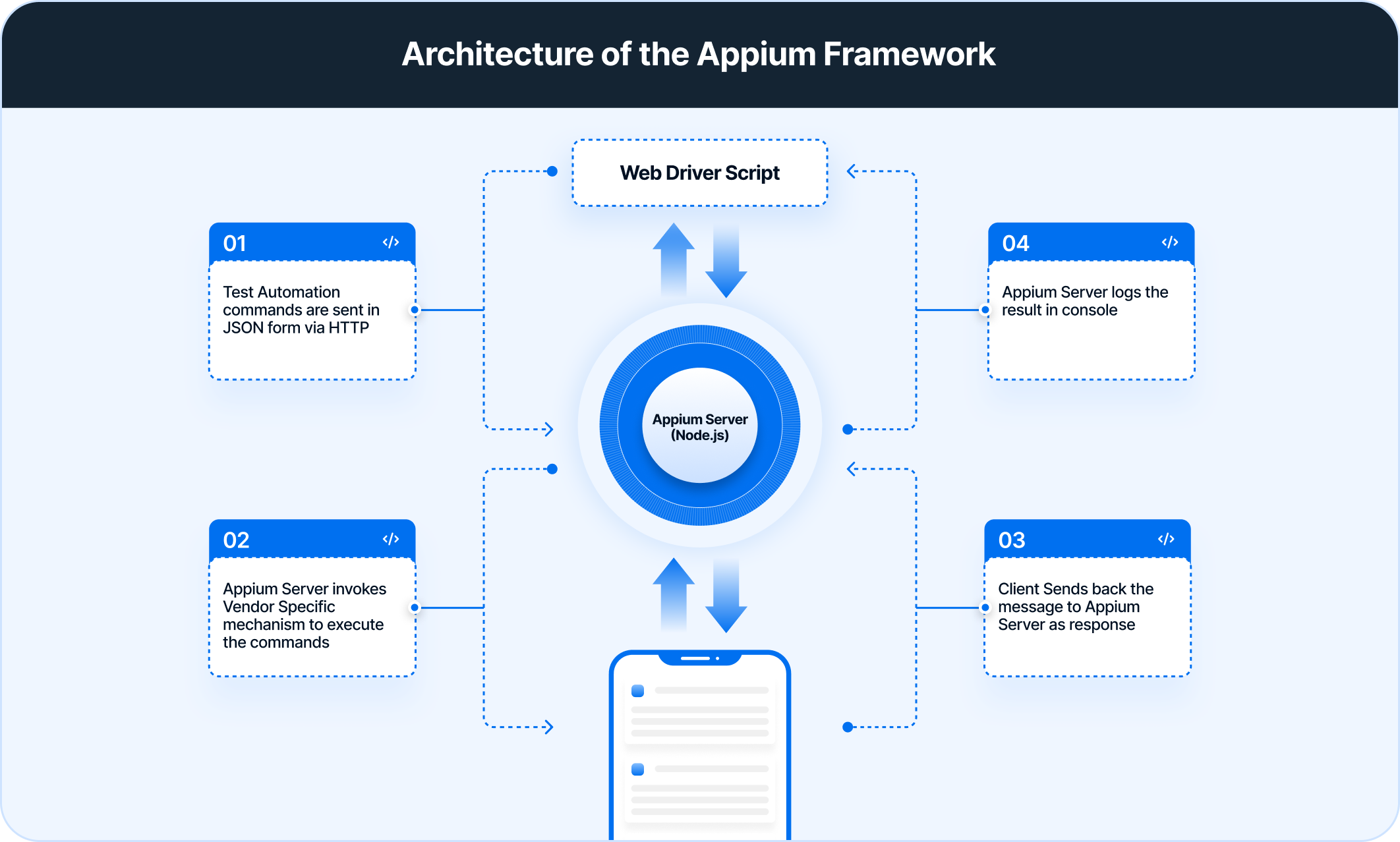
Appium allows automation in the context of a session. The client initiates this session as per the client library (Java, JavaScript, PHP, Ruby, Python, and C#), which ends up sending a POST /session request to the server with the help of a JSON object that is termed as Desired capabilities object.
It is then that the server starts the automation session and responds with a session ID that is further used for sending other commands relevant to the given session.
How Does Appium Work?
Appium operates on a client-server architecture, leveraging the WebDriver protocol (also known as the W3C WebDriver specification), which is the same protocol used by Selenium for web browser automation.
This design enables Appium to interact with mobile applications consistently and standardize across different platforms.
Components of Appium Architecture
Here’s a breakdown of the key components and the workflow:
1. Appium Client: Test scripts are written using an Appium client library. These libraries are available in various programming languages such as Java, Python, Ruby, JavaScript, C#, and PHP. The client libraries translate test commands (e.g., find element, click, send keys) into JSON Wire Protocol or W3C WebDriver protocol messages.
2. Appium Server: The Appium server acts as an intermediary, receiving commands from the client and forwarding them to the appropriate mobile automation framework based on the platform under test. The Appium server is typically written in Node.js. Upon receiving a command, the server establishes a session with the mobile device or simulator/emulator.
3. Automation Frameworks: Appium utilizes platform-specific automation frameworks to interact with the mobile operating system and applications:
- iOS: Appium employs Apple’s WebDriverAgent (WDA). WDA is a WebDriver server implemented by Apple that runs on an iOS device. Appium proxies commands to WDA, which then interacts with the iOS UI using Apple’s XCUITest framework.
- Android: Appium primarily uses UiAutomator2, an automation framework provided by Google for testing Android user interfaces. For older Android versions, Appium might utilize UiAutomator. Appium communicates with a bootstrapping application on the Android device, which in turn interacts with the Android system using UiAutomator/UiAutomator2 commands.
- Windows: For automating Windows desktop applications, Appium uses WinAppDriver, Microsoft’s WebDriver implementation for Windows applications. Appium proxies commands to WinAppDriver, which interacts with the Windows UI using the Windows UI Automation API.
4. Mobile Device or Emulator/Simulator: This is the target environment where the mobile application under test resides. The Appium server communicates with the automation framework running on this device or simulated environment to execute the test commands.
Appium Workflow Summary
- The Appium client (test script) sends a command to the Appium server in the form of a JSON Wire Protocol or W3C WebDriver protocol request.
- The Appium server receives the command and interprets it for the specific mobile platform targeted by the test session.
- The Appium server then forwards the command to the appropriate automation framework (WebDriverAgent for iOS, UiAutomator2 for Android, WinAppDriver for Windows) running on the mobile device or simulator/emulator.
- The automation framework interacts with the mobile operating system and the application’s UI elements to execute the requested action.
- The result of the action is sent back through the automation framework to the Appium server.
- The Appium server then relays the response back to the Appium client.
This layered architecture allows Appium to support multiple platforms using a consistent API, making it a versatile tool for cross-platform mobile test automation. The reliance on the WebDriver protocol also makes it familiar to testers already experienced with web automation using Selenium.
According to Kazuaki Matsuo, an Appium expert, understanding Appium drivers is key. Each driver has different capabilities, and choosing the right one affects stability.”
This underscores that Appium’s architecture isn’t a single engine but a collection of platform-specific drivers — such as XCUITest, UIAutomator2, Espresso, and Windows drivers — each responsible for how commands are interpreted on its respective OS. Selecting the correct driver and understanding its behavior is essential for stable, predictable test execution.
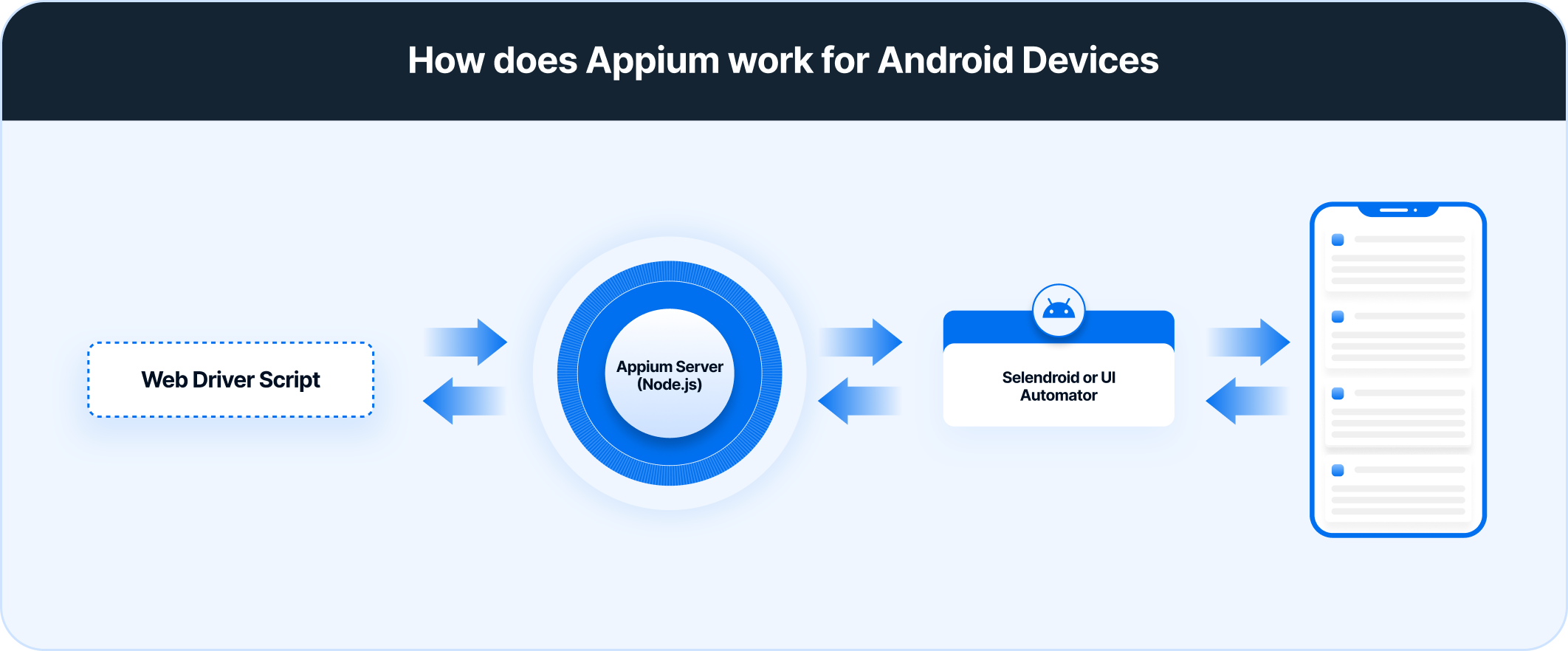
Appium on Android Device
Appium uses the UIAutomator framework (or Selendroid), which is meant for testing the Android user interface to automate applications on Android device testing. The bootstrap.jar file works as a TCP server that sends the test command for acting on the Android device with the help of the UIAutomator or Selendroid framework.
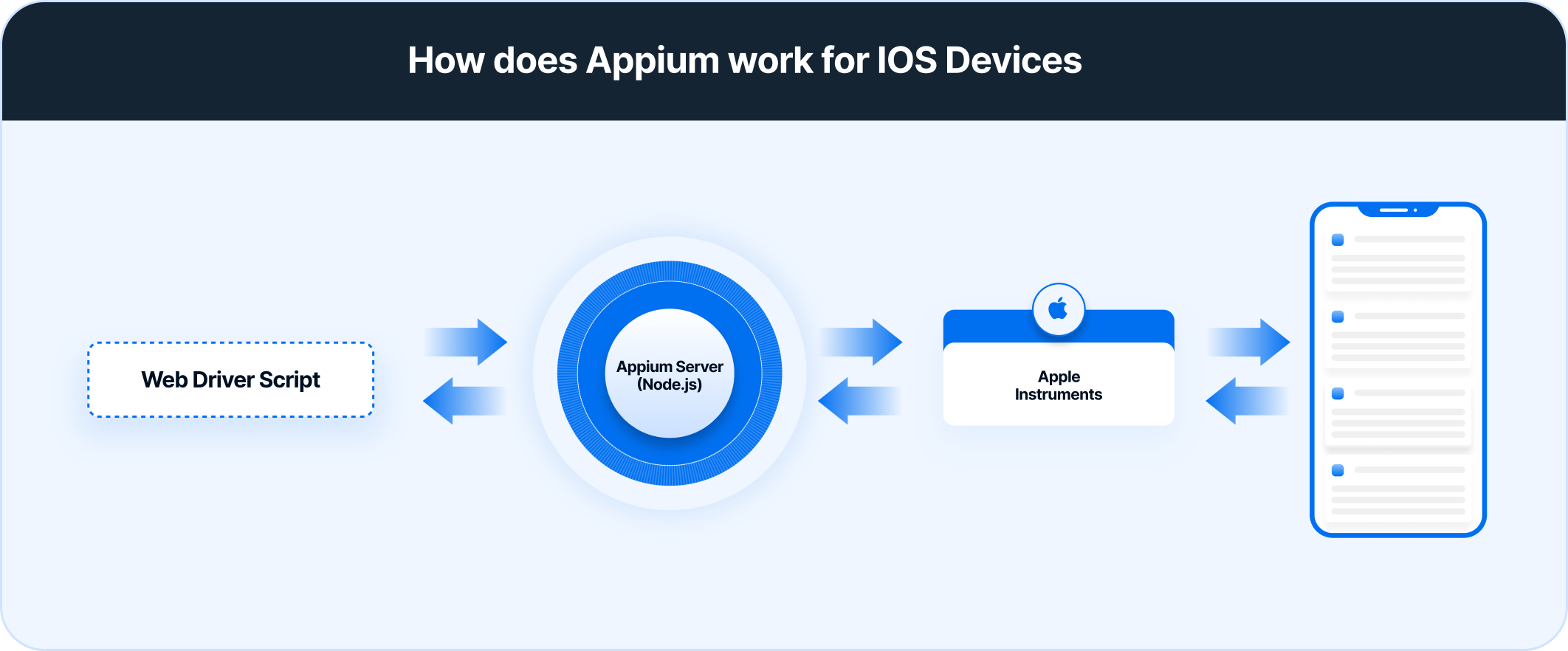
Appium on iOS Device
Similar to the case of Android devices, Appium uses the JSON wire protocol for iOS devices as well. Here, it uses Apple’s UIAutomation API to interact with the user interface elements for automated iOS device testing. The bootstrap.js file works as a TCP server that sends the test command for acting on the iOS device with the help of Apple’s UIAutomation API framework.
Features of Appium
When it comes to mobile app testing, regardless of whether the application is native, hybrid, or mobile web running on Android, iOS, or Windows, Appium remains the first choice for app automation testing. Its popularity is due to a number of features:
1. It is a server and runs in the background
2. It can be synchronized with the TestNG testing framework offering a wider range of features
3. With an in-built UIAutomator, Appium is capable of producing detailed information logs and has a detailed reporting structure for better analysis of test results better and improved debugging
4. It offers the flexibility to write test code in different languages (Java, JavaScript, PHP, Ruby, Python, and C#)
5. It offers the reusability of the same code for different device platforms such as iOS, Android, and Windows. This saves a lot of time and effort
6. It offers QAs full control of the back-end APIs and databases using the test code. This helps evaluate defects that comes from the back-end APIs or databases
7. Testers do not have to modify or recompile the app under test in any way, as Appium uses the standard automation APIs on all platforms. They don’t need to access the source code of the application under test
8. It allows testing of mobile applications on emulators or simulators or real devices, offering flexibility to choose their testing device and environment. However, bear in mind that emulators and simulators are highly inadequate for final-stage testing.
They cannot replicate many devices features such as low battery or unstable network – which is necessary to optimize the app for unsuitable situations. Only real device testing can offer conclusive, accurate results and make an app suitable for working in real user conditions.
9. It offers cross-platform compatibility, enabling the same tests to run on multiple platforms widening the coverage
10. It offers real-life monitoring of tests making their execution more robust
11. Appium allows parallel execution of test automation scripts on different Android or iOS sessions using UIAutomator, UIAutomation, or Xcode9. This speeds up the testing process and ensures scalability
With so many amazing features, Appium is an automation testing framework that stands out as the best choice for mobile application testing.
Tools like BrowserStack enables you to run your Appium tests on real devices and browsers in the cloud, ensuring greater coverage and faster feedback.
How to Install and Configure Appium?
Installing and configuring Appium involves several steps, depending on the platform(s) being targeted for testing. Generally, the process includes:
1. Installing Node.js and npm: Appium server is built on Node.js.
2. Installing Appium Server: Can be installed via npm or by downloading Appium Desktop
npm install -g appium
3. Setting up Platform SDKs: Installing Android SDK and/or Xcode and its command-line tools for Android and iOS respectively.
4. Installing Appium Client Libraries: Installing the client library for the preferred programming language.
pip install Appium-Python-Client for Python
5. Configuring Environment Variables: Setting up necessary environment variables like ANDROID_HOME.
Even with a proper Appium setup, mobile tests often behave differently across device models, OS versions, and hardware conditions.
BrowserStack App Automate eliminates this uncertainty by letting you run Appium scripts on thousands of real Android and iOS devices—revealing performance, locator, and interaction issues early in the development cycle.

How to get started with Appium
To begin with Appium Testing, start this with the installation process and get the prerequisites ready. Follow the steps below for installation.
Prerequisites of Appium Testing
Download the following components to run Appium tests on Android:
- Appium Jar files for Java
- Latest Appium Client Library
- Appium Server
- Java
- TestNG
- Install Java on the system. Don’t forget to set the environment variables.
- Configure Device with Developer Mode option enabled.
What You Need Before Starting Appium
A reliable Appium setup begins with preparing your machine and installing the components required for mobile automation. This section outlines the essential tools and configurations needed before running your first test.
Core Setup Requirements
Before installing Appium, ensure your system meets the following conditions:
- Supported Operating Systems
Appium runs on Windows, macOS, and Linux. However, testing iOS apps requires macOS because Xcode—Apple’s development and automation toolkit—is exclusive to that platform. - Java Development Kit (JDK)
If your test framework uses Java, install a compatible JDK version. The most recent builds are available directly from the official Java website. - Node.js Runtime
Appium is built on Node.js, making Node a mandatory dependency. Download and install it from the Node.js website to enable Appium’s CLI and server capabilities. - Android SDK (for Android workflows)
To automate Android apps, install the Android SDK. The easiest approach is through Android Studio, which bundles SDK tools, platform packages, and emulators. - Xcode (for iOS workflows)
iOS testing requires Xcode on macOS. It provides simulators, device drivers, and signing tools needed to deploy and debug iOS apps.
Preparing Device Environments
Both Android and iOS require additional configuration before they can be used for automation.
Android Setup
After installing the Android SDK, configure the AVD Manager to create and manage Android emulators. For testing on real devices, enable USB debugging and confirm the device is recognized via adb devices.
iOS Setup
Testing on iOS devices requires an Apple Developer account. Configure provisioning profiles, code signing identities, and device trust settings so the app can be installed and automated on simulators or physical devices.
System Configuration for Appium
Several environment variables must be set to ensure Appium and related tools function correctly:
- JAVA_HOME: Points to the directory where the JDK is installed.
- PATH updates: Include the JDK’s bin folder and the Android SDK’s tools/platform-tools to allow command-line access to Java and Android utilities.
Installing Essential Components
Once prerequisites are ready, install Appium and supporting utilities:
Appium CLI (Global Installation)
npm install -g appium
Appium Doctor
A diagnostic tool that verifies whether all required dependencies are correctly installed.
Install it with:
npm install -g appium-doctor
Run it using:
appium-doctor
It will highlight missing tools or misconfigured paths and suggest corrective actions.
Language-Specific Libraries
Based on your programming language, install the necessary Appium client library—such as java-client for Java users—to interact with the Appium server.
Starting the Appium Server
Once everything is in place, launch the Appium server from the terminal:
appium
This initializes the server and prepares it to receive automation commands from your test scripts.
Next Steps:
As a next step I would recommend that you read the following guides. These guides will help you navigate through your tests seamlessly.
- How to Download and Install Appium
- Parallel Test Execution in Appium
- Locator Strategies in Appium
- Setup your Appium Grid
- Top Appium Commands
- How to run Appium tests on Android devices
- How to run Appium iOS Tests on Real Devices?
- What is Appium Inspector?
- Understanding Appium Desktop
- Challenges in Appium Automation
Combine Appium with BrowserStack to validate mobile experiences on real devices at scale. Get faster runs, effortless debugging, and enterprise-grade stability without maintaining any infrastructure.
Best Practices for Appium Testing
Effective Appium automation depends on choices that improve stability, speed, and maintainability across real devices and evolving app codebases.
- Use parallel test execution to shorten test cycles and scale coverage across devices.
- Select stable locators, prioritizing Accessibility IDs over brittle XPath patterns.
- Apply the Page Object Model to separate UI structure from test logic and simplify updates.
- Use explicit waits instead of hard-coded sleeps to handle dynamic mobile UI behavior.
- Capture Appium logs and session data to diagnose failures quickly.
- Keep test code modular so shared actions and utilities remain reusable and easy to maintain.
- Follow consistent naming conventions to improve readability and collaboration.
- Store the test framework in version control for safe iteration and change tracking.
- Manage app state efficiently using noReset and fullReset to reduce unnecessary setup time.
- Validate workflows on real devices to catch performance, sensor, and OEM-specific issues.
For teams that need consistent access to real hardware at scale, BrowserStack App Automate provides a cloud of thousands of real devices, parallel test execution, instant SDK-based setup, and deep debugging capabilities—all of which strengthen these best practices and streamline Appium automation end-to-end.
Troubleshooting Common Errors in Appium
Many recurring Appium failures stem from misconfigured capabilities, unstable locators, or timing-related UI changes. Knowing the typical patterns makes diagnosing issues far easier.
- SessionNotCreatedException caused by incorrect capabilities, missing SDK components, or device/emulator connection failures.
- NoSuchElementException triggered by unreliable locators, delayed UI rendering, or app updates that shift element structure.
- StaleElementReferenceException appearing when the target element is refreshed, replaced, or detached from the app’s DOM during transitions.
- Use Appium logs (CLI or Appium Desktop) to pinpoint driver errors, capability mismatches, or device connectivity issues.
- Enable verbose logging in the test framework to capture deeper execution details and trace failures accurately.
- Validate and refine element locators using Appium Inspector or similar tools to confirm visibility, hierarchy, and state before interacting with elements.
Why choose BrowserStack to run Appium Tests?
BrowserStack App Automate offers a cloud environment purpose-built for running automated tests on real iOS and Android devices. Instead of maintaining physical devices or juggling emulator setups, teams get immediate access to a vast range of device–OS combinations suited for native, hybrid, and mobile web testing.
This allows automation to run at scale, integrate directly with CI pipelines, and validate how an app behaves under genuine user conditions.
What Makes App Automate a Strong Choice for Running Appium Tests?
- A vast cloud of real Android and iOS devices with numerous OS versions, providing accurate validation of hardware-level behavior, OEM-specific differences, sensor interactions, camera flows, and performance-related issues.
- Fast setup through the BrowserStack SDK, enabling Appium tests to run within minutes without altering existing scripts or modifying capability configurations.
- Ability to run tests in parallel across multiple devices, significantly cutting total execution time and accelerating CI/CD runs.
- Comprehensive debugging support with access to console output, text logs, network activity, performance insights, and video recordings for every executed session.
- Availability of Private Devices for teams that require secure access, dedicated hardware, or specialized configurations to maintain consistent and compliant test conditions.
- AI-driven features such as locator self-healing, automated analysis of failed runs, smart test selection, and cross-device automation to boost reliability and lower ongoing maintenance.
Together, these capabilities make BrowserStack App Automate a dependable and scalable platform for teams using Appium to deliver high-quality mobile apps with accurate, real-world validation and rapid feedback.
Limitations of Appium
While Appium is a powerful tool, it has certain limitations:
- Requires significant initial setup, including drivers, SDKs, and device configurations, which can be time-consuming for new teams.
- Slower execution compared to native automation frameworks because every action travels through the Appium server.
- Limited support for certain advanced gestures or hardware-specific interactions unless custom scripts or platform-specific drivers are used.
- Debugging can be complex due to multiple layers (Appium server, device drivers, SDK tools, and the app itself).
- Emulator and simulator behavior may differ from real devices, leading to inconsistencies unless validated on actual hardware.
- Managing parallel test execution can be challenging without proper device orchestration or a stable device lab.
- iOS testing requires macOS and Xcode, creating platform dependency and increased infrastructure overhead.
Conclusion
By now, the core workflow—from installation to writing tests to running them on real devices—should feel noticeably clearer. And as the project grows, these fundamentals become the foundation that keeps the entire suite stable, scalable, and ready for production-level demands.
Whether the goal is faster execution, fewer flaky runs, or broader device coverage, the right Appium setup brings all of it within reach.
With these techniques in place, the path ahead becomes less about troubleshooting and more about building automation that genuinely supports every release.