I once assumed UI automation was straightforward—click, verify, move on.
However, that assumption changed. Tests that passed locally failed in CI on multiple browsers, all because a small animation delay under high CPU load threw everything off.
Flakiness suddenly made sense: dynamic components, async rendering, network variance, and subtle DOM shifts were doing the damage.
It raised better questions—why selectors break only in production, why modals animate differently on low-end devices, why reactive updates behave inconsistently across browsers, and how to build automation that survives real-world UI behavior.
Overview
Types of UI Automation Testing
- Web UI Automation: Validates browser-based user journeys, interactions, and responsive behavior across different rendering engines.
- Mobile UI Automation (iOS and Android): Tests native and hybrid app flows on varied devices, OS versions, and hardware configurations.
- Desktop UI Automation: Automates interactions in Windows, macOS, or Linux applications, including system-level events and UI controls.
- Cross-Platform UI Automation: Ensures consistent behavior across web, mobile, and desktop apps using unified test frameworks.
Those questions led to the strategies that finally stabilized my UI tests, and that’s what this article explores.
What is UI Automation?
UI Automation refers to the practice of using software scripts or tools to automatically interact with an application’s user interface—just like a real user would. Instead of manually clicking buttons, filling forms, scrolling lists, or navigating flows, automation scripts perform these actions programmatically to validate that the UI works as expected.
At its core, UI automation simulates human actions: tapping, typing, hovering, selecting elements, and verifying visual or functional outcomes. It’s commonly used in web, mobile, and desktop applications to ensure that critical user journeys stay stable across browsers, devices, OS versions, and changing codebases.
Modern UI automation typically includes:
- Interacting with elements using locators such as IDs, text, accessibility labels, XPath, or CSS selectors
- Validating UI state, content, layout, or DOM changes
- Handling dynamic components, animations, and asynchronous behavior
- Running tests across multiple environments (browsers, devices, screen sizes)
- Identifying visually breaking changes or regressions
UI automation helps teams catch issues earlier, reduce manual testing effort, maintain release speed, and verify that real users can navigate the product without friction.
What is UI Automation in Testing?
UI Automation in testing is the process of using automated scripts and tools to verify that an application’s user interface behaves correctly across different workflows, devices, and environments. Instead of manually performing actions like clicking buttons, entering text, scrolling, or navigating pages, automation replicates these interactions programmatically to validate functionality, layout, and user experience.
It focuses on testing the application from the user’s perspective, ensuring that every visible component—buttons, forms, menus, modals, tables, inputs, transitions, and visual states—works reliably under real-world conditions.
UI Automation in testing typically involves:
- Simulating user actions such as clicks, taps, typing, gestures, and scrolling
- Locating and interacting with UI elements using selectors (CSS, XPath, accessibility IDs, etc.)
- Validating UI states, content, animations, and layout updates
- Running tests across multiple browsers, devices, OS versions, and screen sizes
- Handling dynamic, asynchronous, or data-driven UI behavior
- Detecting visual regressions and responsiveness issues
Its main purpose is to ensure that the user interface remains stable, functional, and consistent—even as code changes, designs evolve, or new devices enter the market. By automating repetitive UI checks, teams reduce manual testing effort and accelerate release cycles while improving overall product quality.
Read More: UI Testing of React Native Apps
Why is UI Automation important?
The Global Quality Report reveals that more than sixty percent of organizations can now detect defects more rapidly as a result of test automation’s increased test coverage. In addition, 57% of respondents noticed an increase in test case reuse after implementing automation.
In Agile software development, UI automation testing has numerous benefits :
- Enables teams to substantially increase test coverage rates
- Increased test coverage expedites debugging. Once created, test scripts can be reused, making testing readily scalable.
- Test execution is significantly quicker than manual testing.
- Efficient test algorithms deliver accurate test results
- Automated UI tests, unlike manual tests, are not susceptible to human error.
- Automated testing saves time and money.
Pro-Tip: Despite the fact that UI test automation has become commonplace in the agile world, manual testing is still important. Refer to this comprehensive guide on manual UI testing to comprehend why it cannot be completely avoided.
It is crucial that teams discover the optimal balance between manual and automated testing. This is due to the fact that each project is unique and requires the evaluation of multiple factors, including economic viability, time constraints, and the type of tests to be conducted.
In a recent conversation on Semaphore’s “Why the Testing Pyramid Makes Little Sense” with Gleb Bahmutov – Senior Director of Engineering at Mercari, he explains that modern teams should treat UI automation as an early safety net in their delivery pipeline, running end-to-end UI checks on every meaningful change so failures surface before code is merged or shipped.
In the context of that discussion, Gleb’s core message is that the goal is to use UI automation to prevent regressions early, so that when tests are green after a change, teams can be confident nothing critical in the user experience broke
Tools to perform UI Automation
The below tools that can be used for UI Automation Testing:
- Selenium (Website UI Testing)
- Cypress (Website UI Testing)
- Playwright (Website UI Testing)
- Puppeteer (Website UI Testing)
- NightwatchJS (Website UI Testing)
- Appium (Mobile App UI Testing)
- Espresso (Android Mobile App UI Testing)
- XCUITest (iOS Mobile App UI Testing)
Read More: Automated UI Testing Tools and Techniques
Pro Tip : By conducting UI tests on a cloud-based Selenium grid such as the one offered by BrowserStack, testers can obtain quick and accurate results without having to host any on-premise devices. It enables UI testing for iOS and Android on over 3000 actual browsers and devices. By conducting Selenium UI testing on these devices, testers can observe how their website performs under real-world conditions.
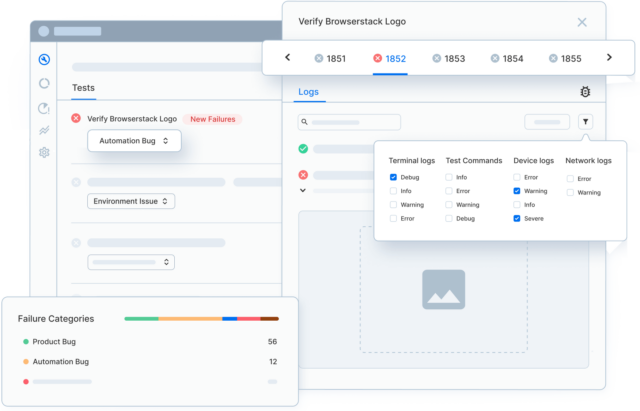
While placing their UI through automated Selenium testing, testers can utilise BrowserStack’s plethora of integrations, UI automation software, and debugging tools to streamline tests, identify bugs, and eliminate them before they disrupt the user experience.
Types of UI Automation Testing
Before building a UI automation strategy, it’s essential to understand the different categories of UI automation and where each type fits. Each category targets specific environments, behaviors, and testing goals.
Web UI Automation: Web UI automation focuses on validating user journeys in browser-based applications—everything from login flows to complex interactive dashboards. These tests simulate real-world conditions like clicking, typing, scrolling, field validation, and form submissions.
Web UI automation must account for browser rendering engines, responsive behavior across screen sizes, and asynchronous actions triggered by JavaScript frameworks such as React, Angular, and Vue.
Mobile UI Automation (iOS and Android)
Mobile UI automation tests native and hybrid apps on smartphones and tablets. These tests verify screens, gestures, navigation, deep links, touch interactions, and in-app logic.
Because devices vary widely across OS versions, hardware configurations, chipsets, and screen densities, mobile UI automation requires testing across diverse real devices to catch model-specific issues.
Desktop UI Automation
Desktop UI automation targets applications built for Windows, macOS, or Linux. These tests simulate keyboard input, mouse interactions, window behavior, and system-level events. Tools often interact directly with OS-level accessibility APIs to identify UI components.
Desktop UI automation is essential for enterprise software, desktop utilities, and thick-client applications with complex workflows.
Cross-Platform UI Automation
Cross-platform UI automation allows a single test framework to validate UI consistency across web, mobile, and desktop environments.
Such frameworks reduce duplication, improve maintainability, and ensure similar user flows behave consistently across devices and platforms.
How to perform UI Automation : Example
At a high level, a UI automation script for “Add to cart” should:
- Open the target site (for example, a demo store).
- Locate a product on the page.
- Click the “Add to cart” button.
- Verify that the cart or item details update as expected.
Using Browserstack Automate this can be automated through UI Automation as below –
Let’s examine how to automate the same “Add to cart” test case using Selenium on Browserstack.
First, navigate to the Browserstack Automate Page.
Secondly, navigate to the Capabilities Generator Page, where we can generate various capabilities for the devices and browsers of our choosing, which assist in configuring selenium tests and running them on the browserstack selenium grid.
In this example, the operating system is iOS, the device is an iPhone 13, and the browser is Safari.
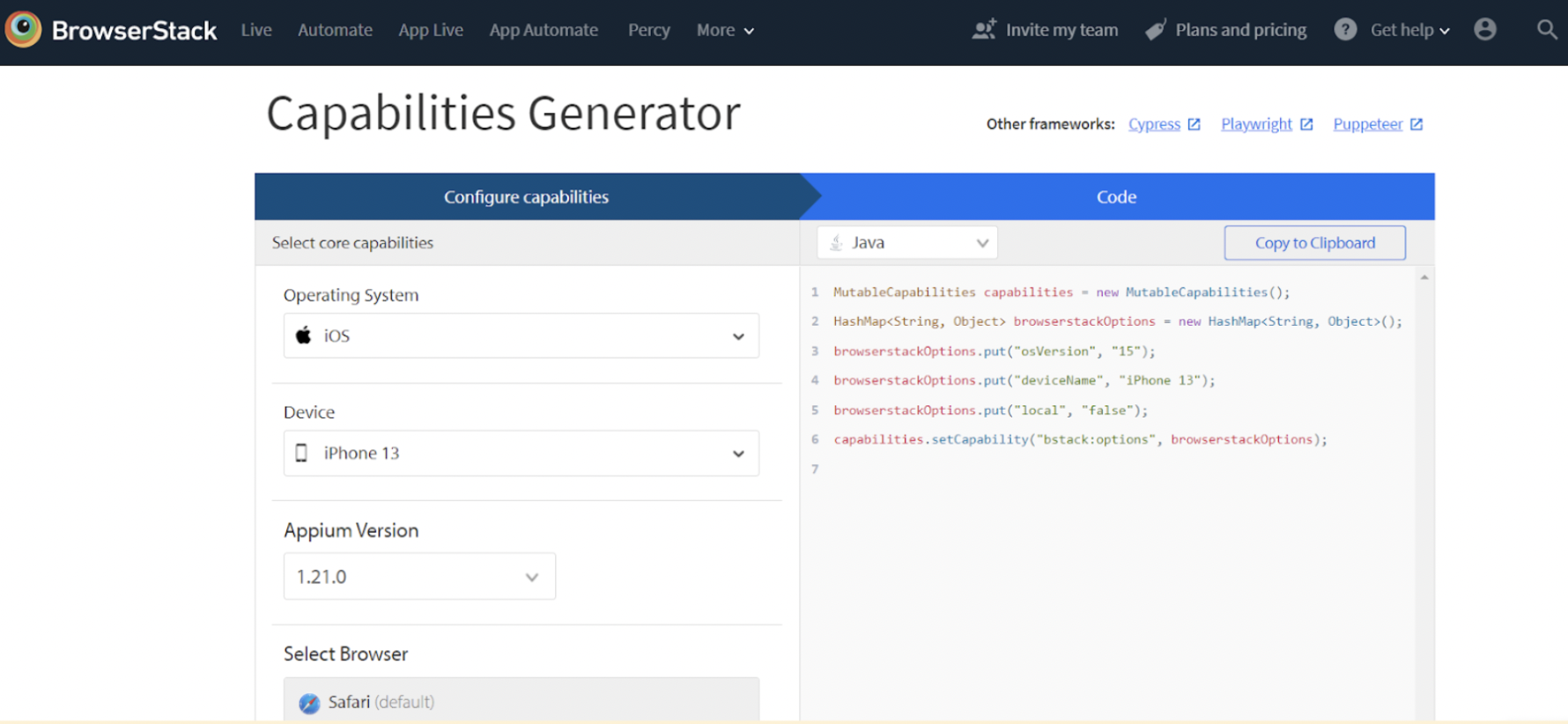 Browserstack Automate Capabilities Generator
For the purpose of this example, we’ll be using Java Selenium using TestNG for UI automation, it is important to create a prototype Maven project in any code editor and add the Selenium and TestNG dependencies to the pom.xml file, as shown below.
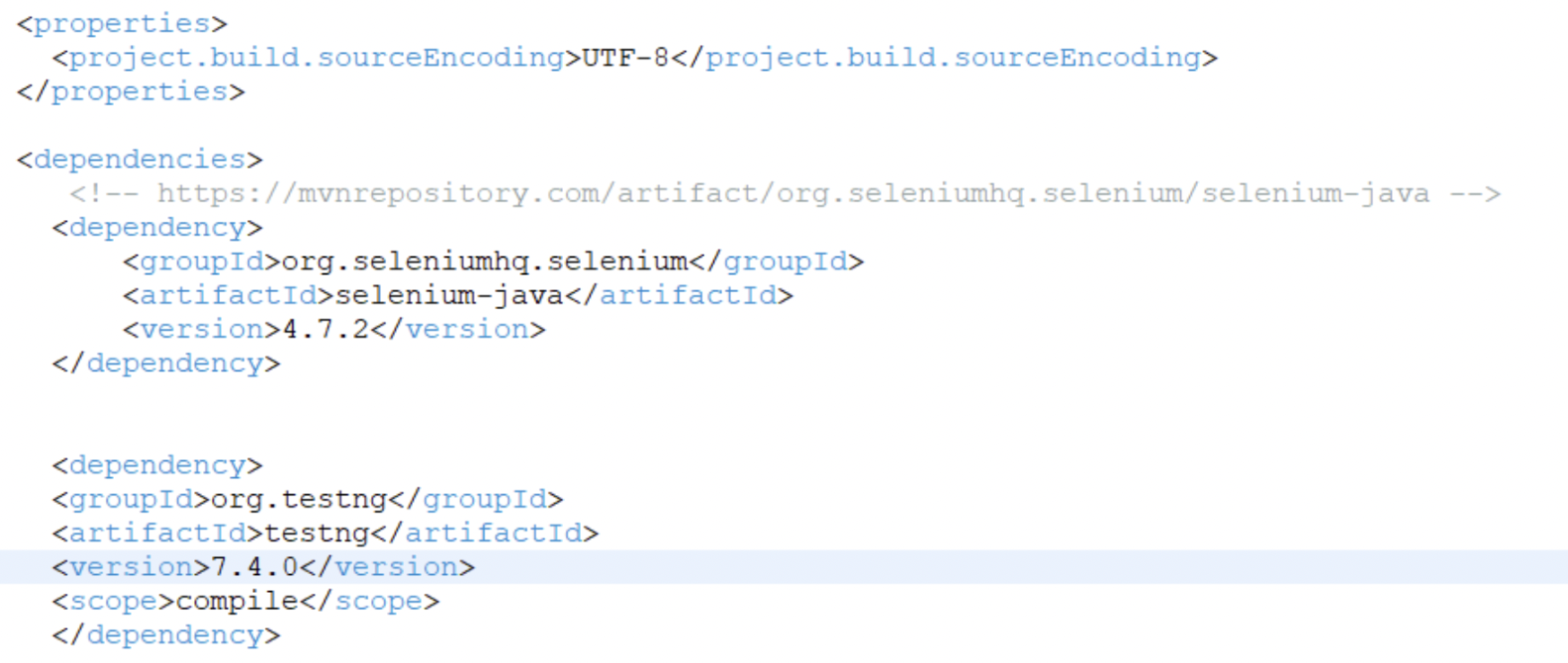 Maven File
Finally this is the code snippet to add the item to the cart. Save the file as test.java.
package com.qa.bs;
import java.net.MalformedURLException;
import java.net.URL;
import java.util.HashMap;
import java.util.List;
import org.openqa.selenium.By;
import org.openqa.selenium.MutableCapabilities;
import org.openqa.selenium.WebDriver;
import org.openqa.selenium.WebElement;
import org.openqa.selenium.remote.RemoteWebDriver;
import org.testng.Assert;
import org.testng.annotations.AfterTest;
import org.testng.annotations.BeforeTest;
import org.testng.annotations.Test;

public class BSTest {
public static String username = "<Browserstack username>";
public static String accesskey = "<Browserstack password>";
public static final String URL = "https://" + username + ":" + accesskey + "@hub-cloud.browserstack.com/wd/hub";
WebDriver driver;
String url = "https://www.bstackdemo.com/";
MutableCapabilities capabilities = new MutableCapabilities();
HashMap<String, Object> browserstackOptions = new HashMap<String, Object>();

@BeforeTest
public void setUp() throws MalformedURLException, InterruptedException {

browserstackOptions.put("osVersion", "15");
browserstackOptions.put("deviceName", "iPhone 13");
browserstackOptions.put("local", "false");
capabilities.setCapability("bstack:options", browserstackOptions);
driver = new RemoteWebDriver(new URL(URL), capabilities);
driver.get(url);
Thread.sleep(3000);

}

@Test(priority = 1)
public void addItemToCartTest() {
List<WebElement> addToCart = driver.findElements(By.cssSelector("div.shelf-item__buy-btn"));
//Click on first item
addToCart.get(0).click();
WebElement itemDetails = driver.findElement(By.cssSelector("div.shelf-item__details"));
Assert.assertTrue(itemDetails.isDisplayed());

}


@AfterTest
public void tearDown() {
driver.quit();
}
}
Use the below command to run the test script in BrowserStack Automate:
mvn clean test
Now the code can be executed on Browserstack Automate and the results observed
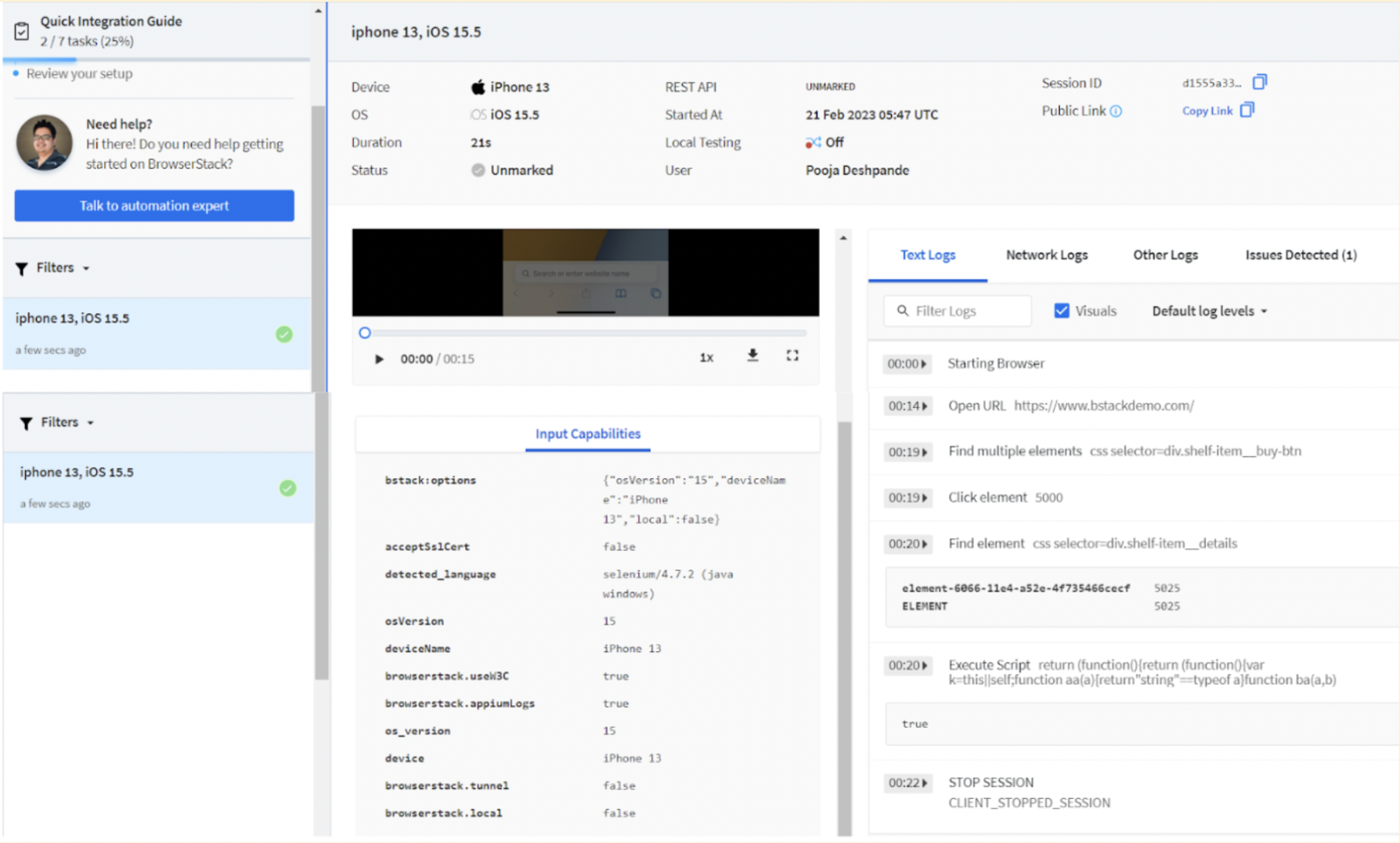 Browserstack Automate Results Screen
Key Challenges in UI Automation Testing and How to Address Them
UI automation delivers immense value, but it comes with inherent complexity. Modern UIs are dynamic, asynchronous, and device-dependent, which often makes tests unstable or time-consuming to maintain. Understanding these challenges—and proactively addressing them—ensures that test suites remain reliable and scalable.
Handling Dynamic and Asynchronous UIs
Dynamic interfaces often load content in phases due to API calls, animations, lazy-loaded components, and reactive updates. If tests interact with elements before they fully render, failures occur even when the application is functioning correctly.
How to address it:
- Use conditional waits like wait for element visible, wait for navigation, or wait for text change instead of fixed delays.
- Prefer automation frameworks with built-in auto-waiting capabilities.
- Validate UI readiness using network stubs or state-based assertions.
- Test smaller functional units to reduce dependence on long, asynchronous chains.
Selector Instability and Frequent DOM Changes
Selectors are one of the most common causes of flakiness. UI elements often change due to:
- New CSS frameworks
- Dynamic class names
- Component re-renders
- Layout refactoring
Fragile XPaths or style-based selectors quickly become outdated.
How to address it:
- Use semantic locators such as data-test-id, accessibility labels, or test-specific attributes.
- Avoid deeply nested XPaths and rely on stable, descriptive selectors.
- Maintain a centralized locator strategy to simplify updates.
- Collaborate with developers to include stable test attributes during development.
Cross-Browser and Cross-Device Flakiness
A test may pass consistently on Chrome but fail on Safari or Firefox due to differences in:
- Rendering engines
- Layout interpretation
- JavaScript execution speed
- Touch vs. mouse inputs
- Device CPU profiles
Flakiness across browsers reduces trust in automation.
How to address it:
- Run tests on real browsers and devices, not just local setups.
- Incorporate cross-browser testing early in CI pipelines.
- Use visual checks to detect rendering discrepancies.
- Optimize scripts to avoid assumptions tied to a specific browser’s behavior.
Environmental Differences Between Local and CI
Tests often pass locally but fail in CI due to:
- Different browser versions
- Reduced compute power
- Network throttling
- Missing dependencies or fonts
This creates false negatives and slows down delivery.
How to address it:
- Use containerized test environments (Docker) to match local and CI setups.
- Shift to cloud testing platforms where environments remain consistent.
- Mock or stub network calls for predictable timing.
- Add robust logging to distinguish real issues from environmental noise.
Long Execution Time and Difficulty Scaling
End-to-end UI tests are slower by nature. A suite of dozens or hundreds of tests can take hours on a single machine, impacting deployment cycles.
How to address it:
- Enable parallel execution to distribute tests across multiple browsers or devices.
- Isolate redundant flows and move them to lower-level tests (API, unit).
- Refactor long tests into smaller, modular scenarios with shared setup.
- Leverage cloud platforms to scale horizontally without hardware limits.
Test Data Reliance and State Pollution
UI tests often interact with real databases, user accounts, or shared resources. When data isn’t reset or controlled, tests interfere with each other—leading to non-deterministic failures.
How to address it:
- Use dedicated test accounts or ephemeral data for each run.
- Clean up state before and after tests.
- Mock or virtualize backend services when appropriate.
- Implement environment-specific fixtures instead of hardcoded values.
Difficulty Debugging Failures
UI tests can fail for dozens of reasons—timing issues, layout shifts, network delays, browser quirks, or locator mismatches. Without proper debugging artefacts, identifying the cause is tedious.
How to address it:
- Capture screenshots, console logs, network logs, and videos for every test.
- Use trace viewers or timeline recordings to pinpoint flaky behavior.
- Surface errors through rich test reports with detailed steps.
- Compare visual snapshots to detect subtle UI changes.
Best Practices for UI Automation
Since the UI is what users interact with and observe, it is essential to automate testing to abbreviate release cycles. As with all aspects of software development, there are unwavering best practices that all teams can adhere to in order to maximise the return on their automation investment.
- Adhere to a consistent nomenclature scheme.
- Examine which test cases ought to be automated.
- Create quality test data.
- Keep test evaluations independent.
- Do not rely solely on a single assessment method.
- Avoid sleeping when you should suspend a user interface test.
- Not all tests must be run on each and every supported browser.
- Consider experimenting with headless browsers.
- Consider utilising a BDD framework.
- Use data-driven rather than repeated tests.
BrowserStack Automate helps teams implement UI automation best practices at scale by running tests on real browsers and devices, enabling parallel execution, and offering rich debugging logs, videos, and network insights.
It ensures that well-designed tests behave consistently across environments and uncover UI issues that local setups often miss.
UI Automation vs API Automation
API Testing and UI Testing are both necessary forms of software testing, but they are quite distinct. UI testing focuses on the functionality and usability of the user interface, whereas API testing focuses on the functionality of the APIs.
API testing is typically performed before UI testing because it catches the majority of errors.
UI testing is still required to ensure that the user interface functions as anticipated. UI testing can also be used to examine edge cases, such as how the user interface responds to errors.
The below table can enumerate these differences in a clearer form –
| Feature | API automation | UI automation |
|---|---|---|
| Functionality | API automation tests the functionality of the business logic only | UI automation tests the functionality of both the UI as well as the business logic |
| Speed of Execution | Fast | Slower than API automation |
| Maintenance Cost | Medium | Usually higher than API automation |
| Responsibility | Developers and Testers | Only testers |
Choosing the Right UI Automation Framework for Testing (Evaluation Criteria)
Selecting the right UI automation framework determines how stable, maintainable, and scalable your test strategy becomes. A strong framework must not only support your current application architecture but also adapt to new platforms, devices, and delivery speeds. The criteria below help teams evaluate frameworks effectively and choose one that aligns with both technical and business needs.
Platform and Application Coverage
A framework must support the environments your users rely on. Different tools specialize in different domains—Selenium and Playwright for web, Appium for mobile, and others for desktop applications.
Evaluation points:
- Does it support browsers like Chrome, Safari, Firefox, Edge?
- Can it automate mobile apps across iOS and Android?
- Is there support for hybrid or cross-platform applications?
- Does it accommodate responsive and multi-device Web UI testing?
Selecting a framework with broad platform coverage reduces fragmentation and avoids maintaining multiple toolchains.
Selector Strategy and Element Handling Capabilities
Reliable element interaction is the core of UI automation. Frameworks vary significantly in how they locate and handle UI elements, especially in dynamic or reactive applications.
Evaluation points:
- Does the framework support stable selectors such as data-test-id or accessibility IDs?
- Are auto-waits built-in for elements to appear, disappear, or reach a ready state?
- Does it handle shadow DOM, iframes, portals, or virtual DOM patterns?
- How well does it manage dynamic content and re-renders?
Better selector support leads to fewer flaky tests and easier maintenance.
Cross-Browser and Cross-Device Compatibility
Applications behave differently across engines and hardware. Frameworks should allow tests to run on diverse environments without significant rewrites.
Evaluation points:
- Are multiple browsers supported from a single test script?
- What is the integration pathway with real devices and OS versions?
- Can the framework run tests on cloud device farms?
- Does it support headless and headed modes for varying environments?
Wide compatibility ensures that automation reflects real user conditions.
Ease of Setup, Configuration, and Language Support
A framework should be easy to onboard and accessible to testers and developers alike.
Evaluation points:
- How simple is the installation and initial test setup?
- Is there support for popular programming languages such as Java, JavaScript, Python, C#, or Ruby?
- Are documentation and sample projects available and up to date?
- How easy is it to integrate with existing build tools and editors?
A smooth learning curve reduces friction and accelerates adoption.
Built-In Waits and Smart Synchronization
Tests become unreliable when they interact with UI elements too early.
Frameworks with strong synchronization features minimize manual waits.
Evaluation points:
- Does the framework automatically wait for elements, animations, or page loads?
- Does it detect UI readiness without needing hard-coded delays?
- Are conditional waits expressive and easy to use?
Smart waiting is crucial for applications built with modern UI frameworks like React, Angular, Svelte, and Vue.
Parallel Execution and Scalability
As the automation suite grows, execution time must stay predictable.
Parallelism helps teams maintain fast feedback loops.
Evaluation points:
- Can tests run in parallel by default?
- Is sharding or test distribution supported?
- How well does the framework integrate with cloud providers for scalable execution?
- Are retries and test isolation built in?
Strong scalability prevents slow pipelines and bottlenecks during releases.
Debugging, Reporting, and Logging Features
Debugging UI tests can be challenging without clear visibility into failures.
Evaluation points:
- Does the framework capture screenshots or videos during failures?
- Are console logs, network logs, or tracing capabilities available?
- Are HTML or dashboard-style reports supported?
- Can the tool integrate with external reporting platforms?
Enhanced debugging helps identify the root cause of flaky behavior quickly.
CI/CD Integration and DevOps Readiness
A future-proof framework must fit seamlessly into delivery pipelines.
Evaluation points:
- Does it integrate with CI/CD tools such as GitHub Actions, Jenkins, GitLab, CircleCI, and Azure DevOps?
- Can environment variables and secrets be managed securely?
- Does it support containerized execution (Docker)?
- Are there plugins or pre-built actions for running tests in pipelines?
Smooth automation in CI/CD ensures UI testing becomes a continuous, automated quality gate.
Community Support and Ecosystem Maturity
A strong ecosystem accelerates learning and long-term adoption.
Evaluation points:
- Is the framework actively maintained with frequent updates?
- Does it have extensive community support, forums, and GitHub activity?
- Are plugins, integrations, and add-ons widely available?
- Does it have a track record of long-term stability?
A mature ecosystem guarantees longevity and consistent support for evolving needs.
Conclusion
I’ve found that using a cloud-based platform like BrowserStack Automate makes UI automation far more manageable in practice. Instead of wrestling with local setups or trying to reproduce environment-specific issues,
I can run my tests on real browsers and devices directly in the cloud. The Cloud Selenium Grid lets me execute tests in parallel across multiple environments, which cuts down execution time and exposes problems early. And now that Cypress runs on BrowserStack Automate as well, I can validate every part of the interface across browsers without maintaining any of the infrastructure myself. It’s simply a smoother, faster way to surface real UI issues and keep releases moving without unnecessary friction.